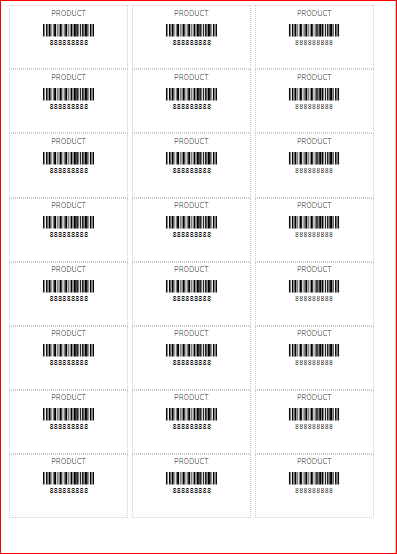
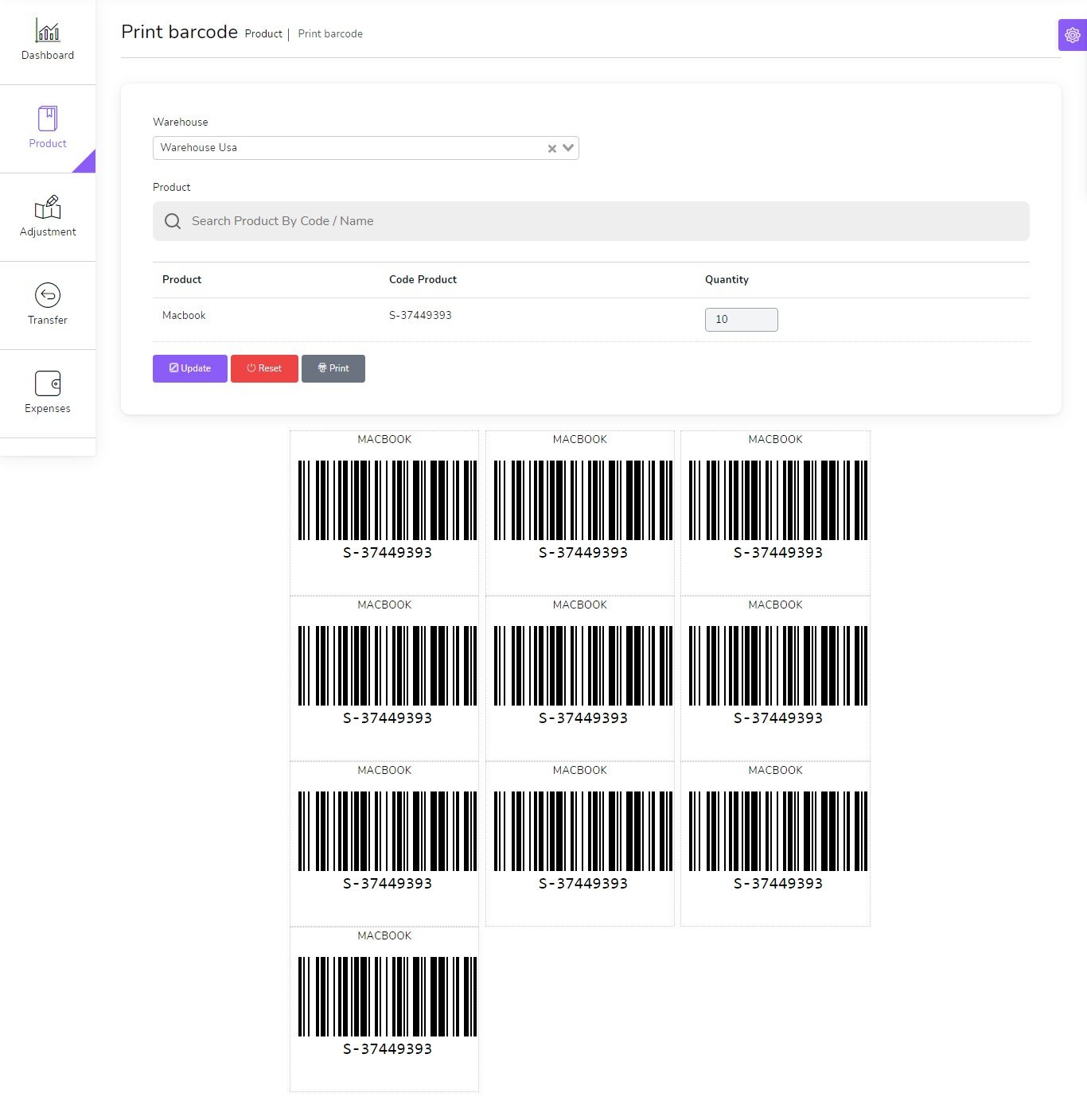
📦 Print Barcode / Labels
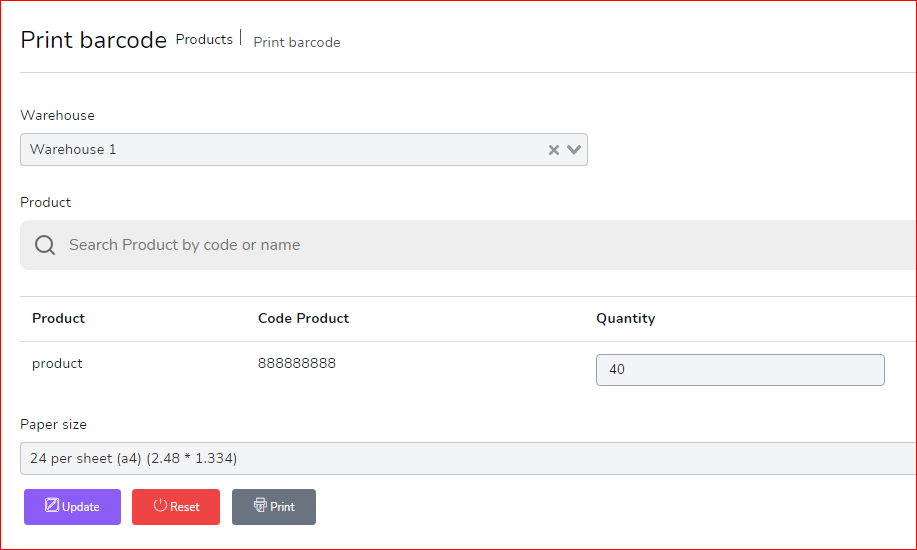
Navigate to /app/products/barcode to start printing your barcodes and labels.
🔧 Steps to Print:
- Select Warehouse
- Select Product
- Set Quantity
- Choose Paper Size
- Click on Update
- Click on Print
📊 Dashboard
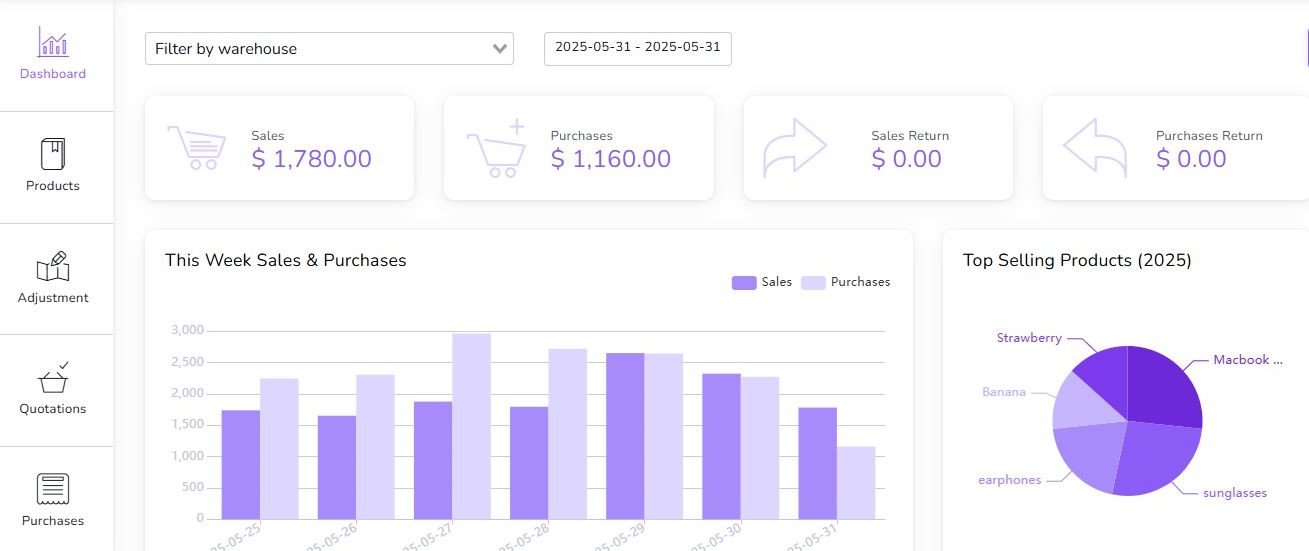
Dynamic dashboard
📌 Key Metrics & Insights:
- Today Sales
- Today Purchases
- Today Sales Return
- Today Purchases Return
- This Week Sales & Purchases
- Top Selling Products This Month
- Payment Sent & Received This Week
- Top 5 Customers This Month
- Recent Sales
🌐 Languages Management
This section allows you to manage all languages, define default ones, and control their status.

Form Fields to Add Language:
- Name: Name of the language (e.g., English, Français, العربية).
- Locale: Locale code (e.g.,
en,fr,ar). - Flag: Upload the flag icon for visual identification.
Language Table Columns:
- Flag: Display the uploaded country flag.
- Name: Language name.
- Locale: Language locale key.
- Is Active: Indicates if this language is currently available in the system.
- Is Default: Marks the language as the system's default fallback.
- Actions: Edit, Delete, or Open Translations.
🈺 Translations Manager
Translate UI texts into any active language. Each key represents a word or phrase used in the system.

Translation Management Features:
- 🔍 Search Bar: Filter translation keys by value or key name.
- ➕ Add New: Insert a new translation key/value manually.
- 💾 Save: Save changes for each translation key independently.
- 📥 Save All Changes: Bulk save after editing multiple fields.
- 🔄 Reload Reminder: Prompts user to reload the page after saving to apply changes immediately.
✅ Use this interface to manage your Translations
🛒 Products
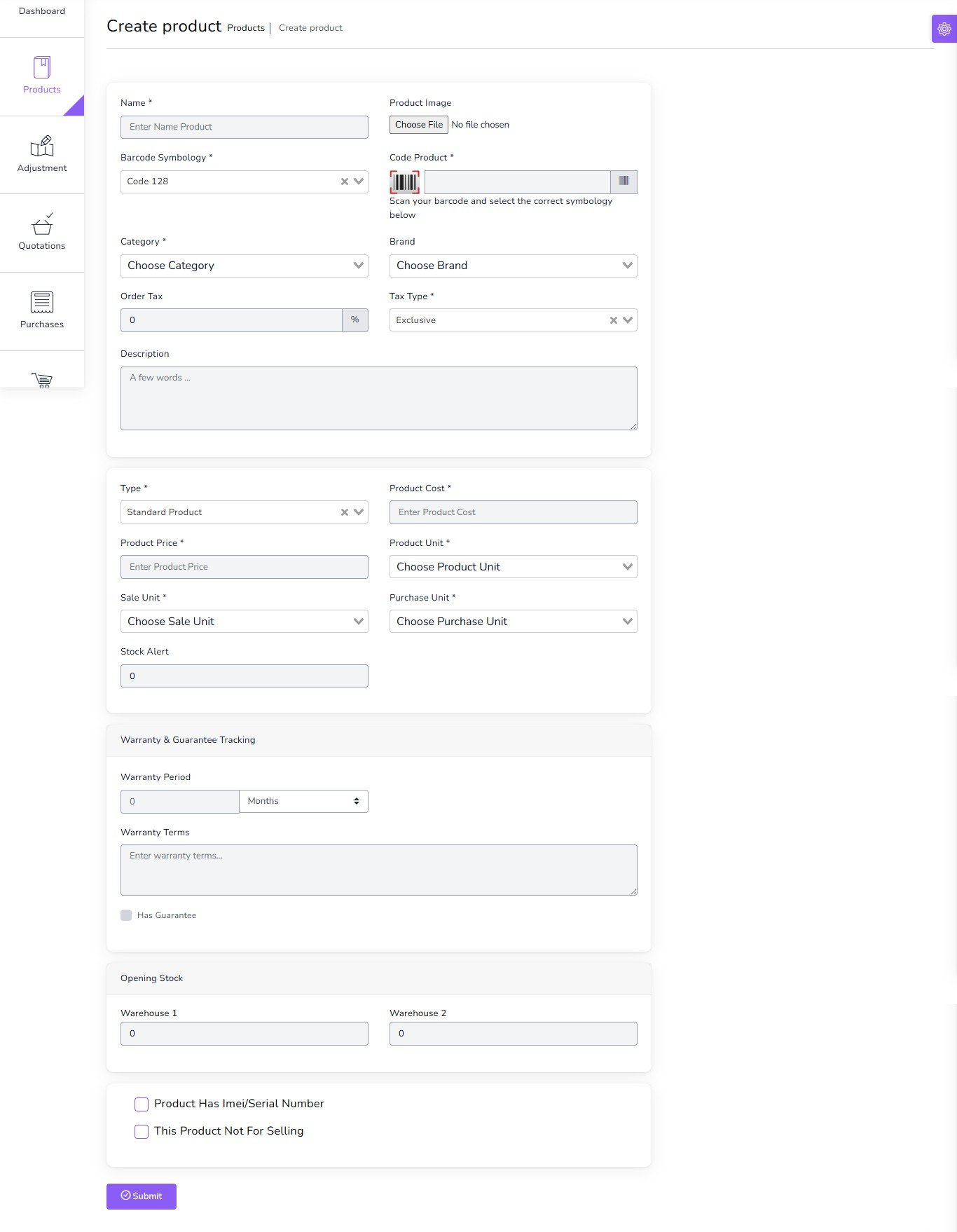
To create a new product it's very easy
📌 Product Creation Fields:
- Product Name
(required) - Product Code
(required) - Category
(required) - Brand
(optional) - Barcode Symbology
(required) - Product Cost
(required) - Product Price
(required) - Product Unit
(required) - Sale Unit
(required) - Purchase Unit
(required) - Stock Alert
(optional) - Order Tax
(optional) - Tax Method
(optional) - Note
(optional) - You can add multiple variants of a product
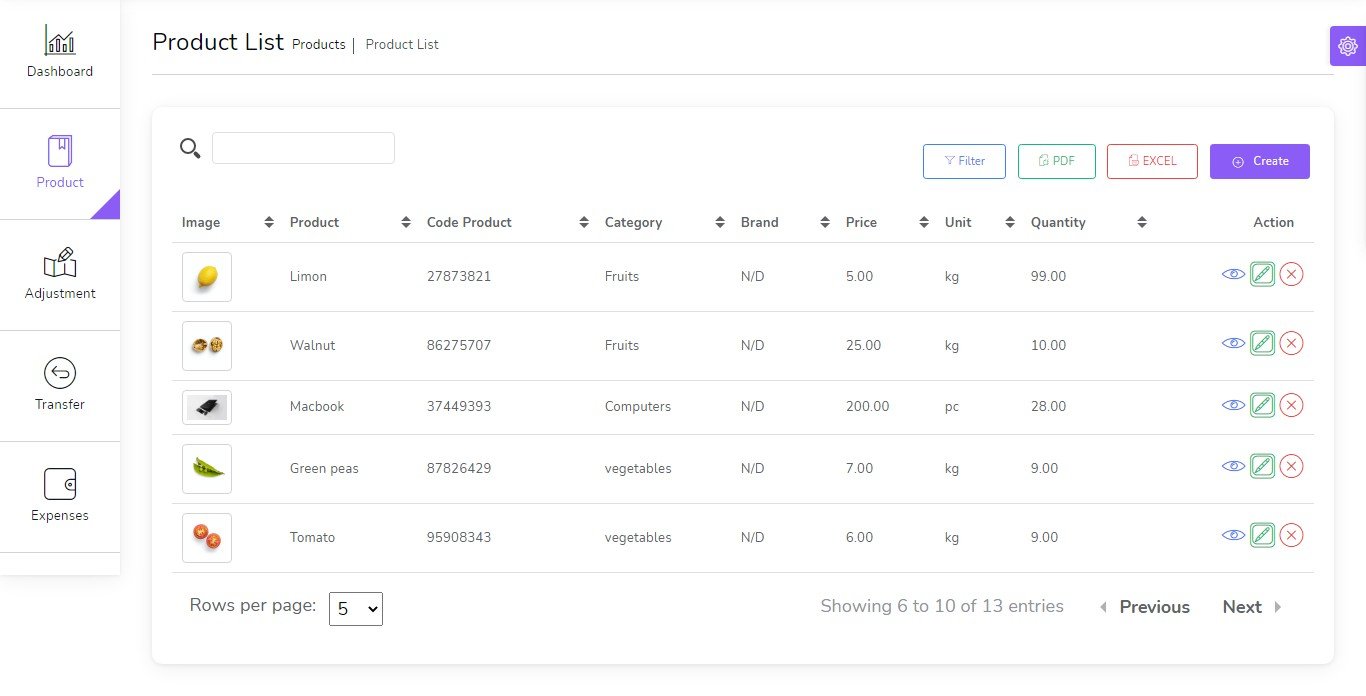
You can manage product list
⚙️ Product Management Features:
- Edit Product
- View Product Details
- Delete Product
- Generate Product List in PDF
- Generate Product List in Excel
- Filter products by code, name, or category
Print Barcode
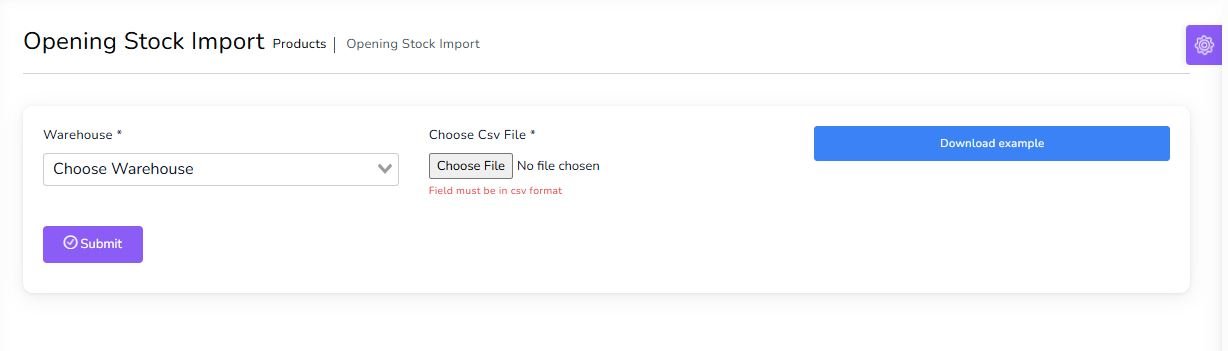
Opening Stock Import
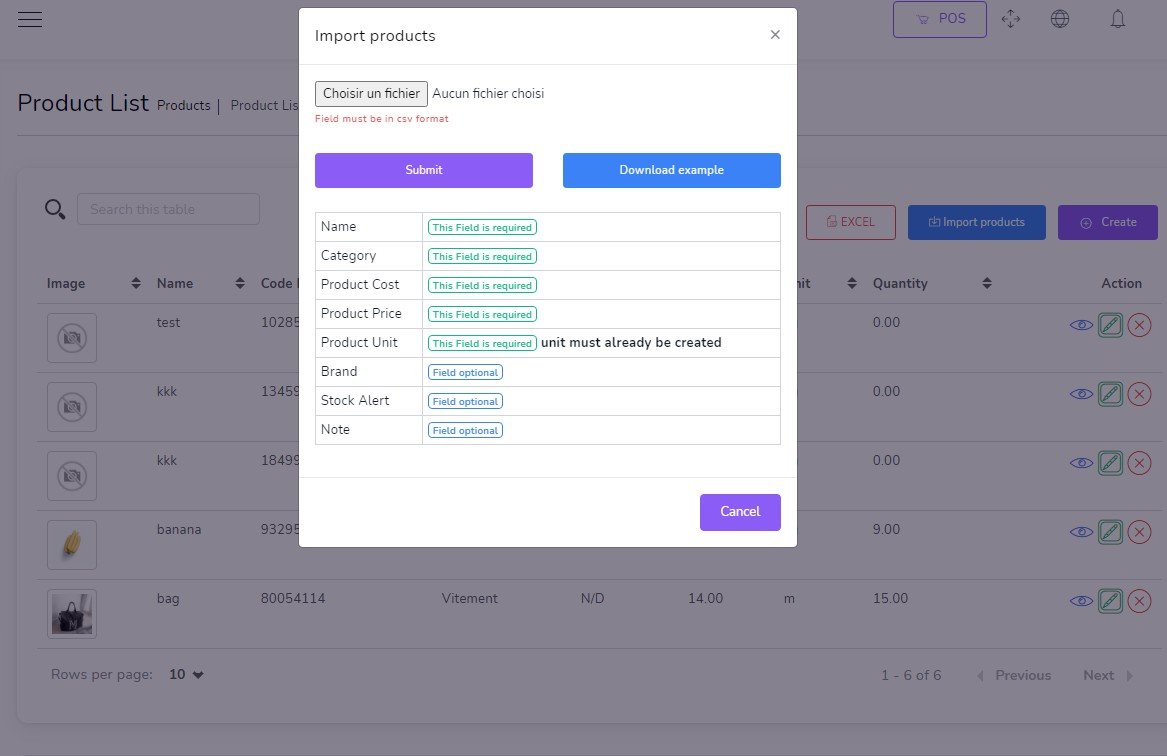
Import Products by CSV
Transfers
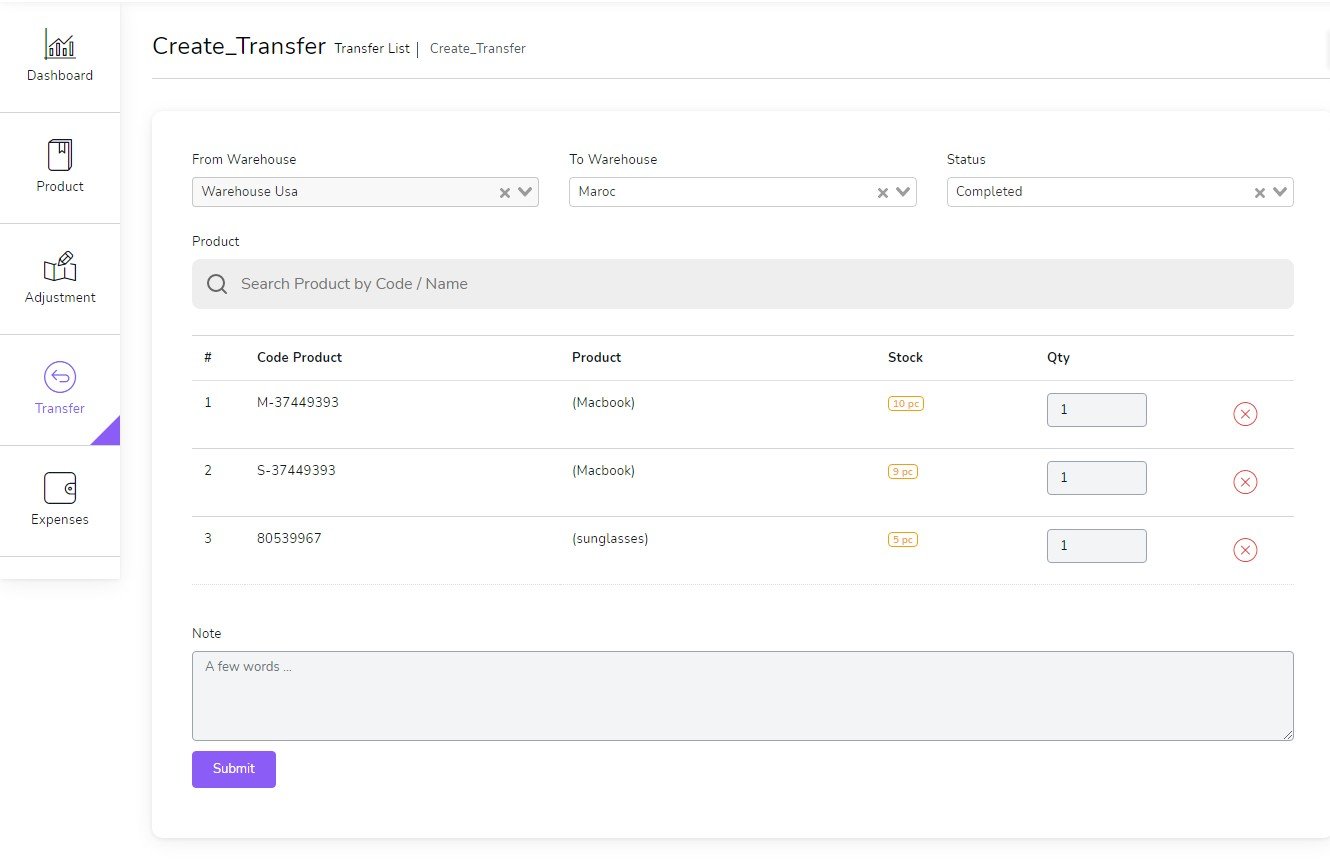
to create a new Transfer it's very easy
- From Warehouse
(required) - To Warehouse
(required) - Status
(required)
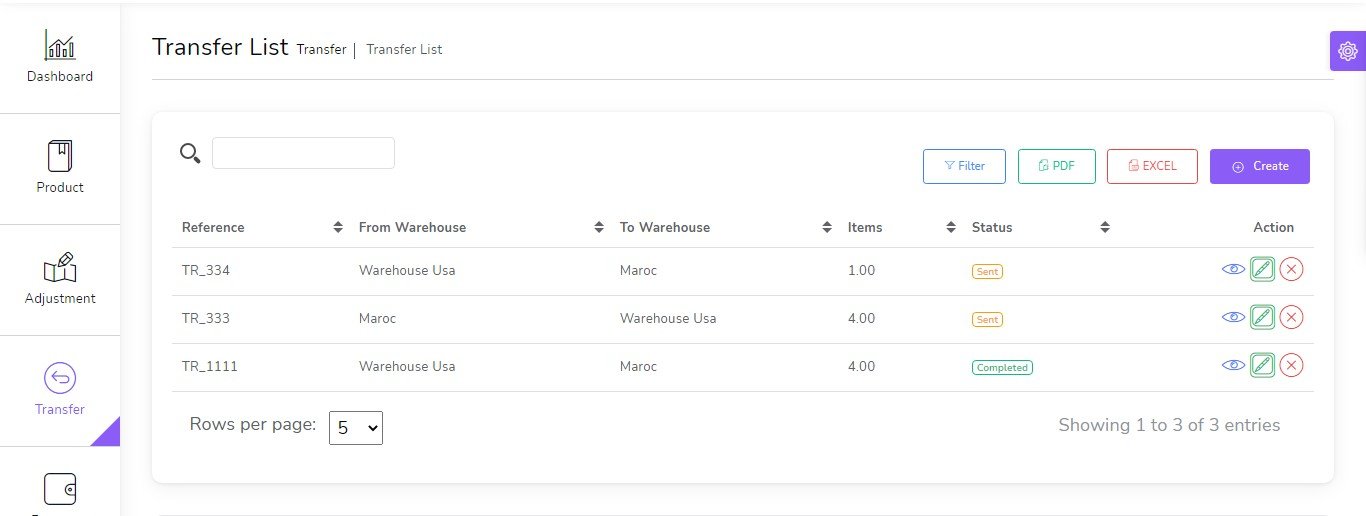
You can manage Transfer list
- Edit Transfer
- View Details Transfer
- Delete Transfer
- Generate Transfer list in PDF
- Generate Transfer list in Excel
- Filter Transfer by Reference , To warehouse , From Warehouse , Status
Adjustments
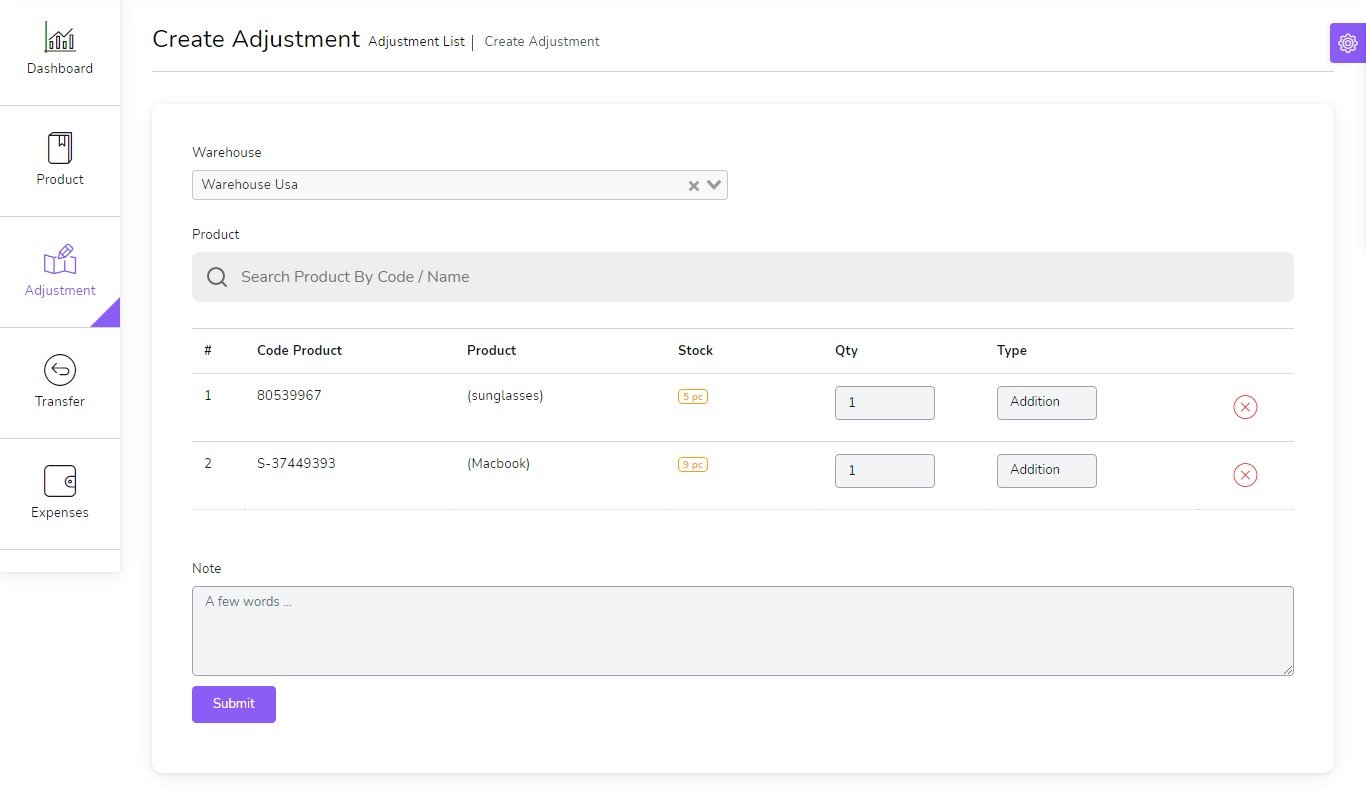
to create a new Adjustment it's very easy
- Warehouse
(required) - Select Product
(required)
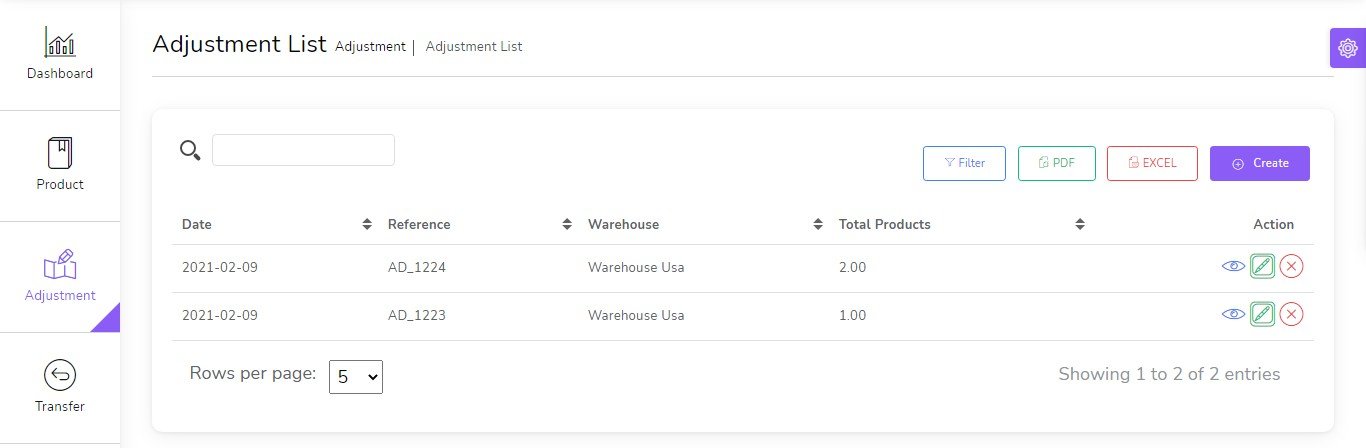
You can manage Adjustment list
- Edit Adjustment
- View Details Adjustment
- Delete Adjustment
- Generate Adjustment list in PDF
- Generate Adjustment list in Excel
- Filter Adjustment by Dtae , Reference , warehouse
Accounts
to create a new Account it's very easy
- Account num
(required) - Account Name
(required) - Initial Balance
(required) - Details
(optional)

You can manage Account list
- Edit Account
- Delete Account
- Generate Account list in PDF
- Generate Account list in Excel

Transfer Money
to Transfer Money between Your Accounts it's very easy
- Date
(required) - Amount
(required) - From Account
(required) - To Account
(required)

You can manage Transfer Money
- Edit Transfer Money
- Delete Transfer Money

Expenses
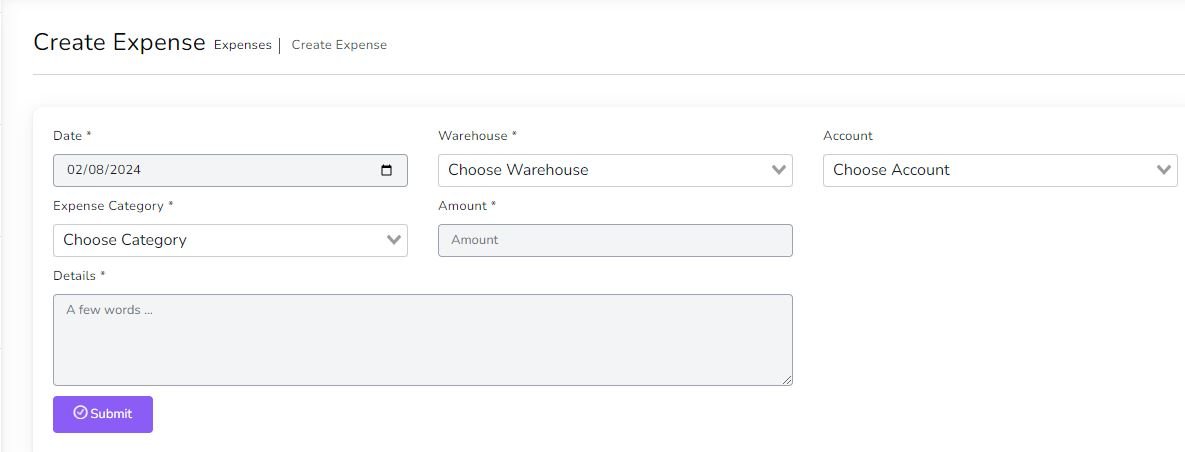
to create a new Expense it's very easy
- Date
(required) - Warehouse
(required) - Account
(Optionnal) - Expense category
(required) - Amount
(required) - Details
(optional)
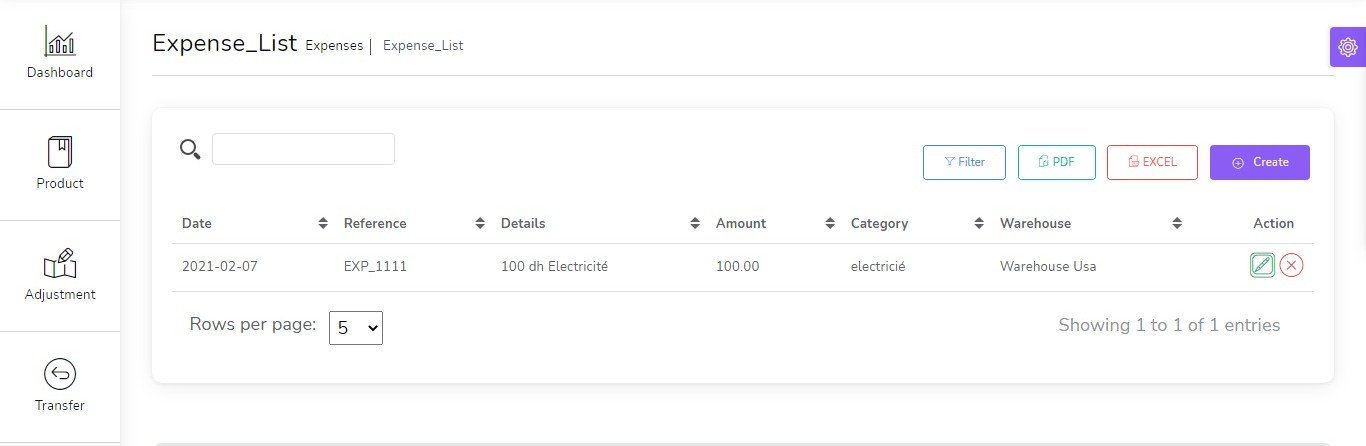
You can manage Expense list
- Edit Expense
- Delete Expense
- Generate Expense list in PDF
- Generate Expense list in Excel
- Filter Expense by Date , Reference , warehouse , Expense category, Account
Deposits
to create a new Deposit it's very easy
- Date
(required) - Account
(Optionnal) - Deposit category
(required) - Amount
(required) - Details
(optional)

You can manage Deposit list
- Edit Deposit
- Delete Deposit
- Generate Deposit list in PDF
- Generate Deposit list in Excel
- Filter Deposit by Date , Reference , Deposit category, Account

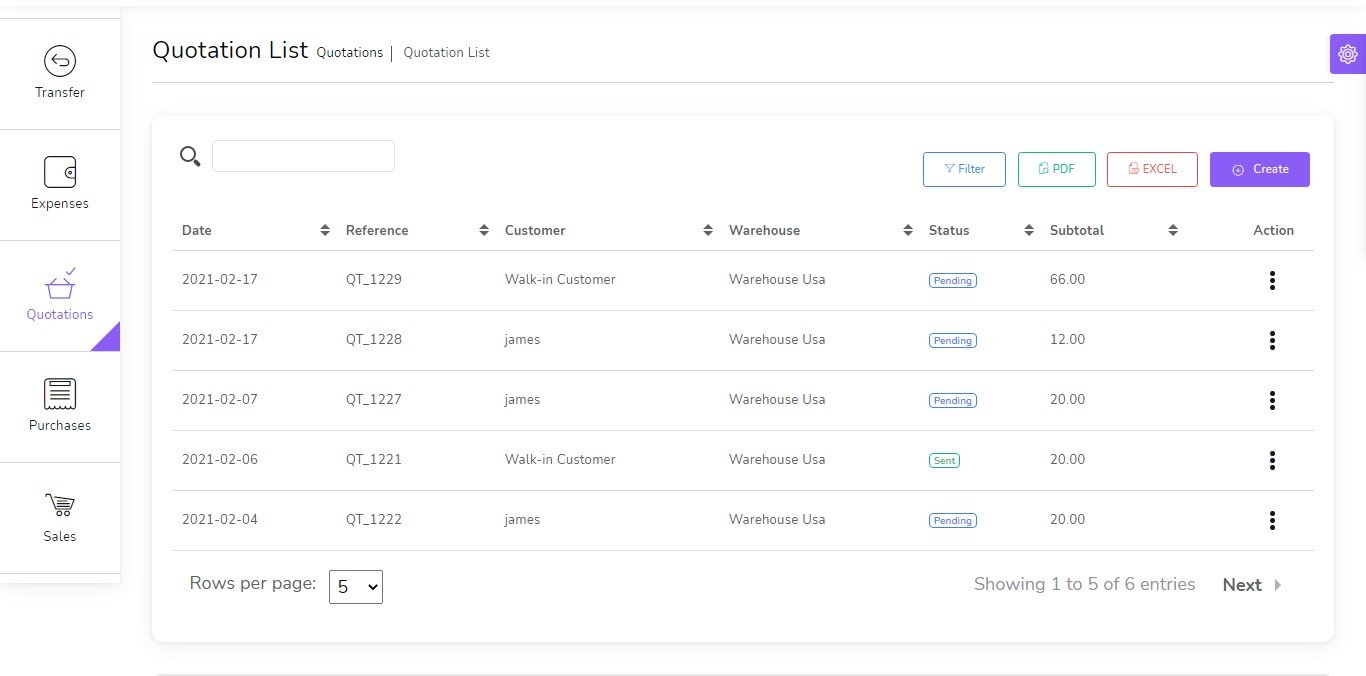
Quotations
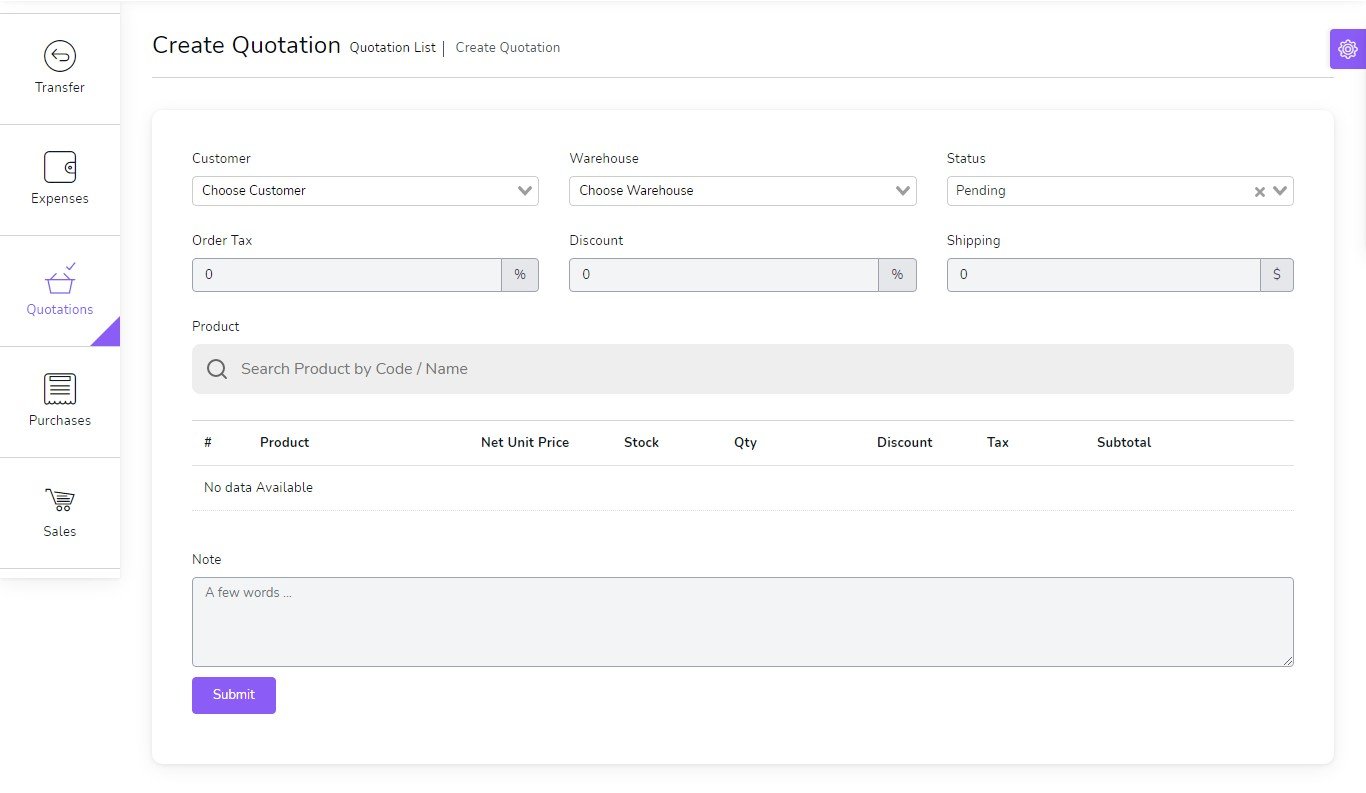
to create a new quotation it's very easy
- Customer
(required) - Warehouse
(required) - Status
(required)
You can manage quotation list
- Edit quotation
- View Details quotation
- Delete quotation
- Change to Sale
- Send quotation on email
- Generate quotation list in PDF
- Generate quotation list in Excel
- Filter quotation by Date, Reference , Customer , Warehouse , Status
Sales
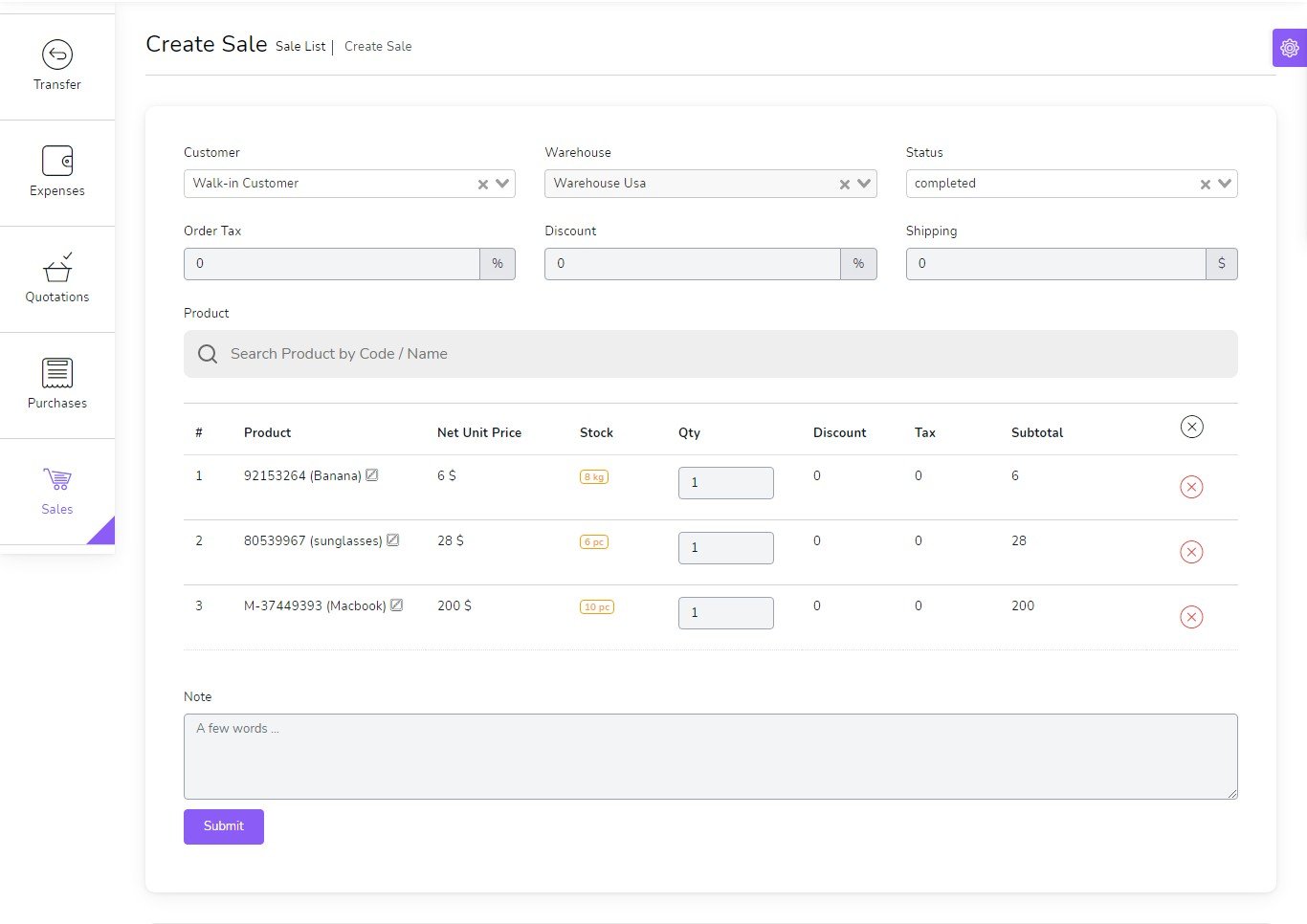
to create a new sale it's very easy
- Customer
(required) - Warehouse
(required) - Status
(required)
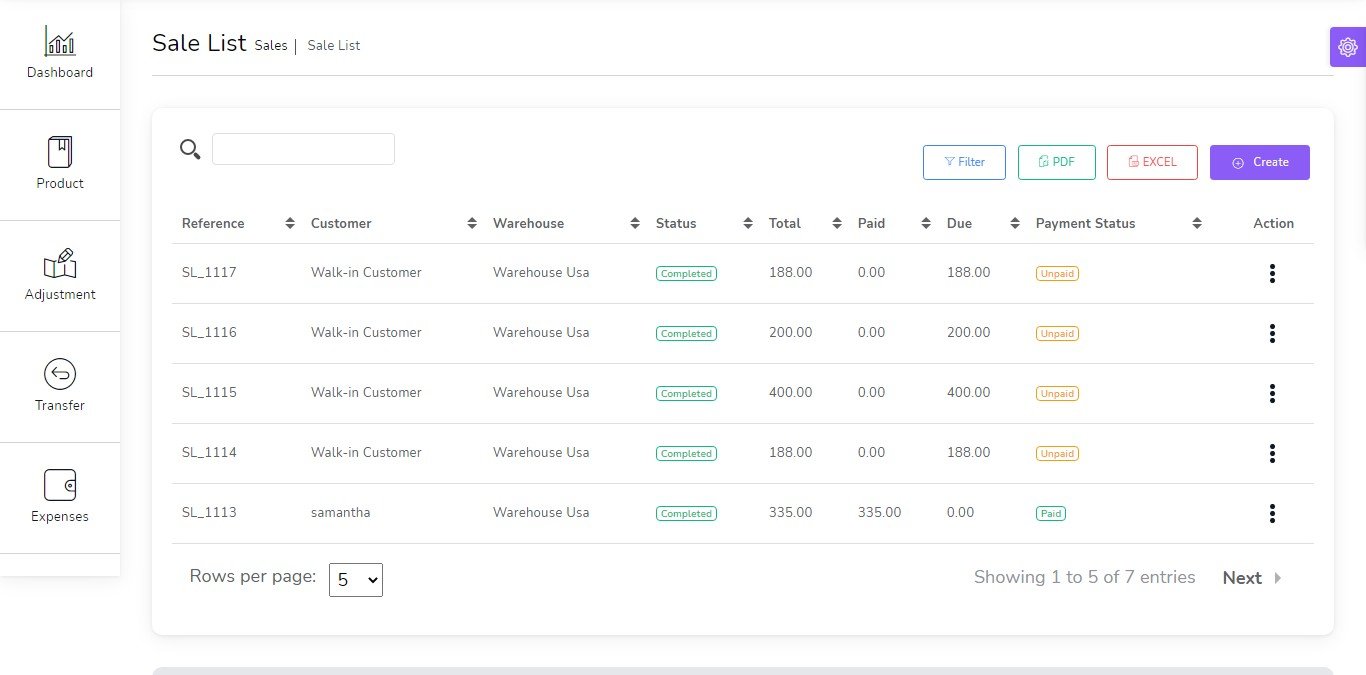
You can manage sale list
- Edit sale
- View Details sale
- Delete sale
- Change to Sale
- Send sale on email
- Generate sale list in PDF
- Generate sale list in Excel
- Filter sale by Date, Reference , Customer , Warehouse , Status , Payment status
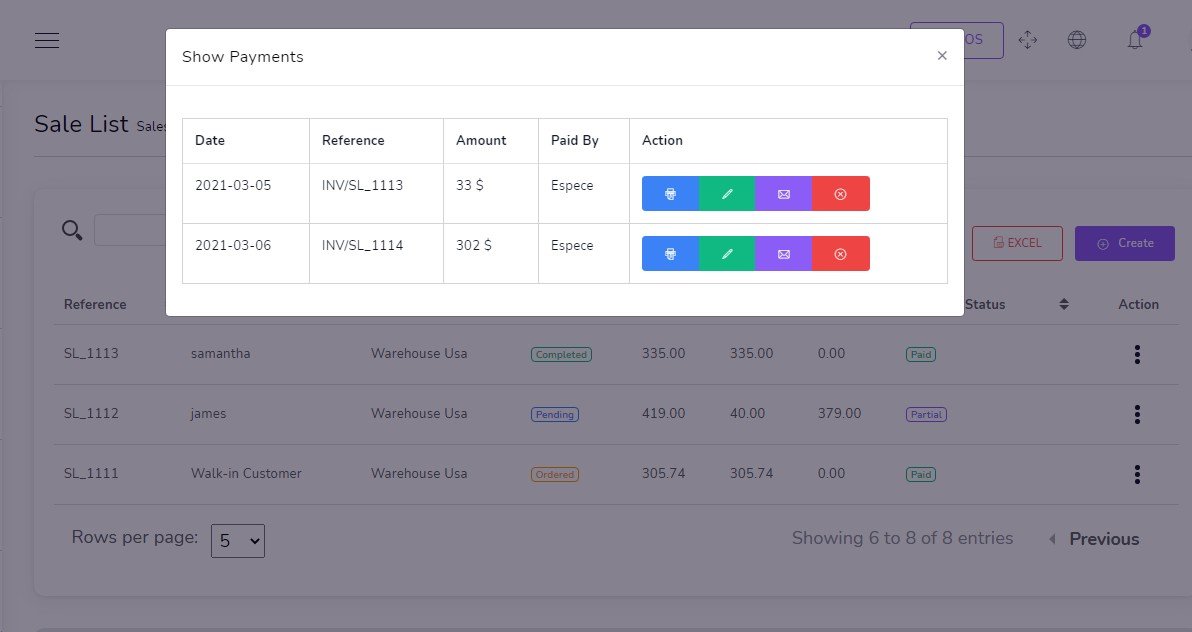
Show Payment
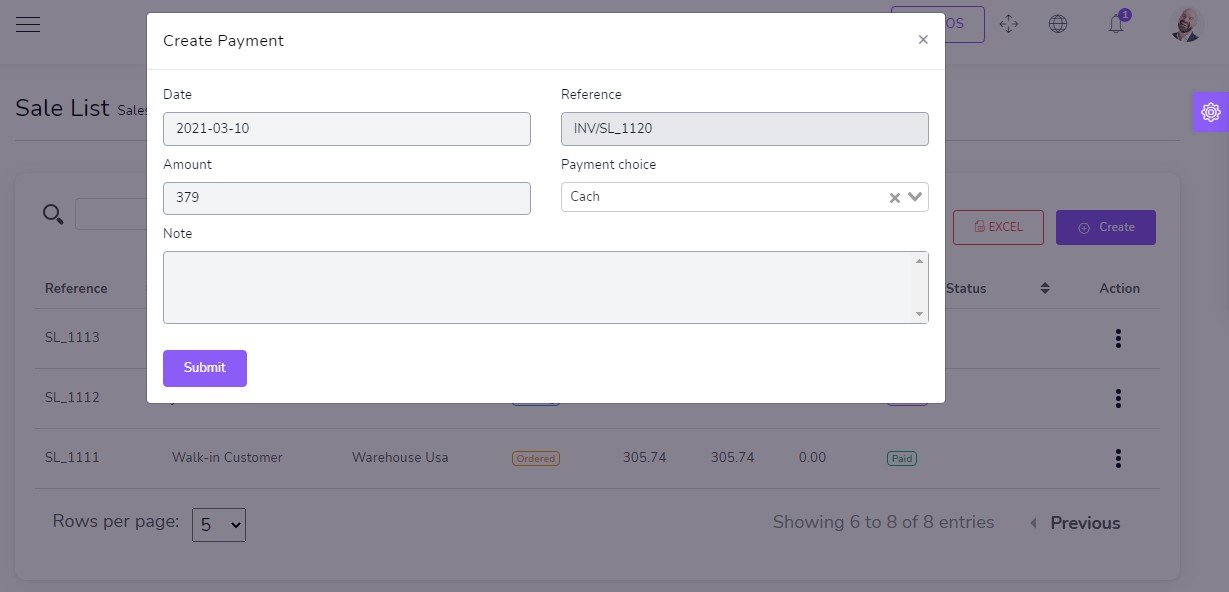
Add Payment
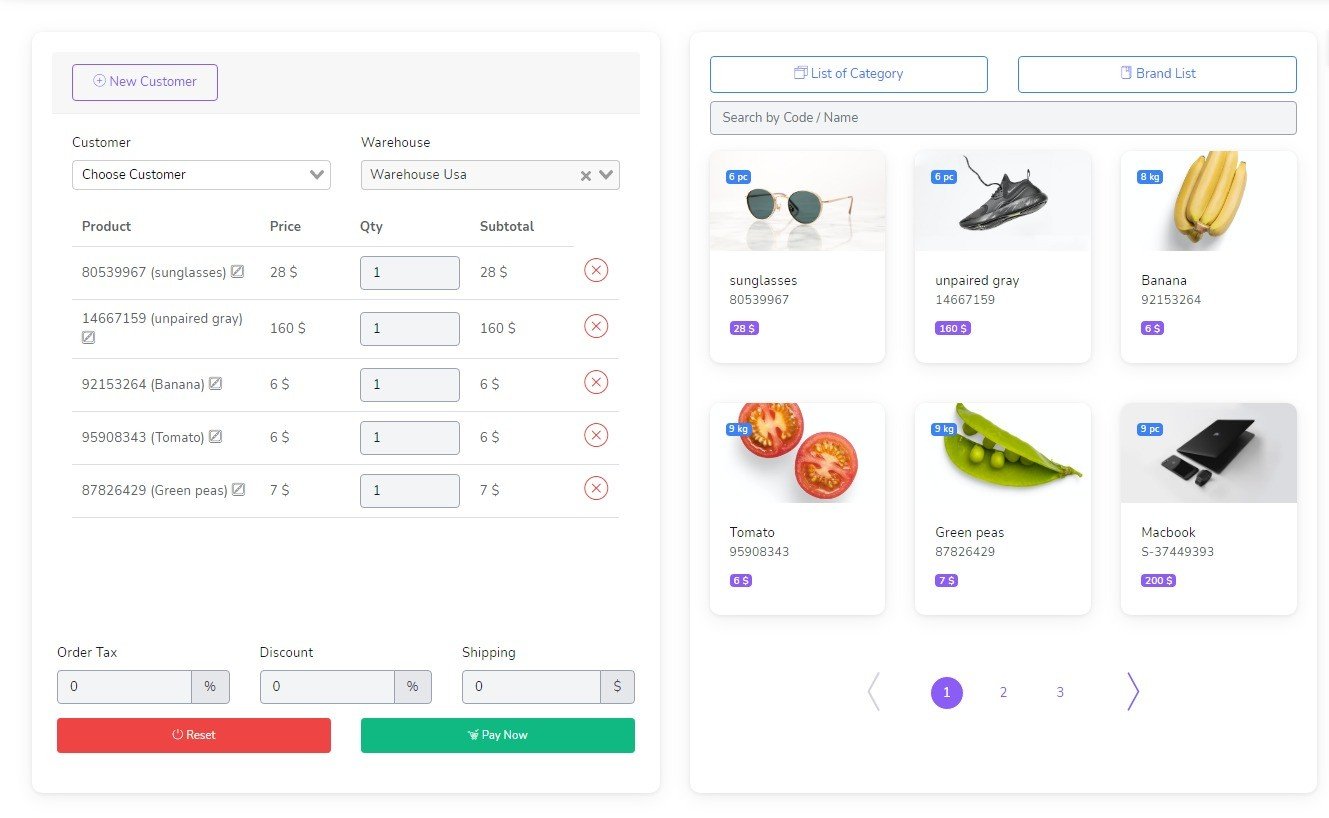
Sales POS
Easy POS
- Barcode Scanner
- you can search for product by name or code
- Filter Product by Brand , Category
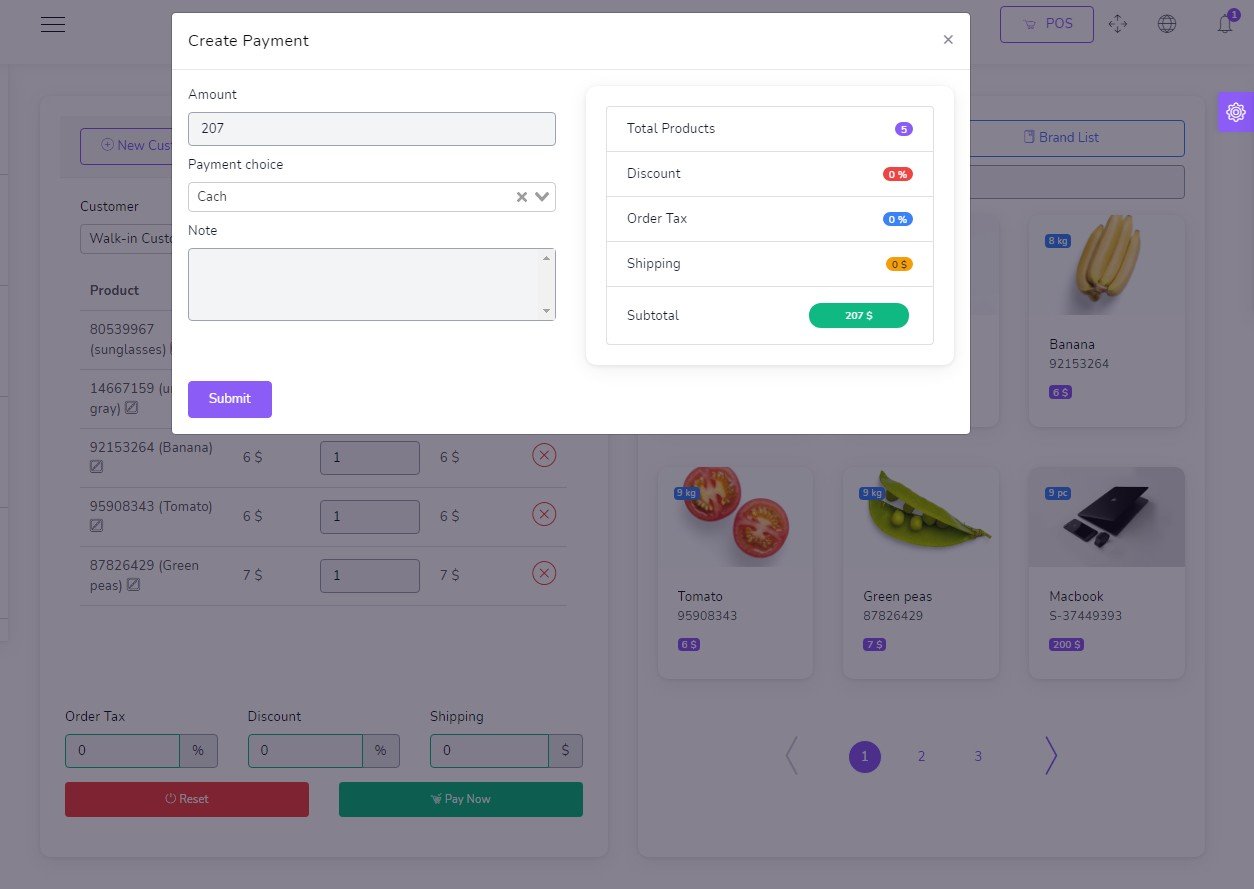
POS Payment
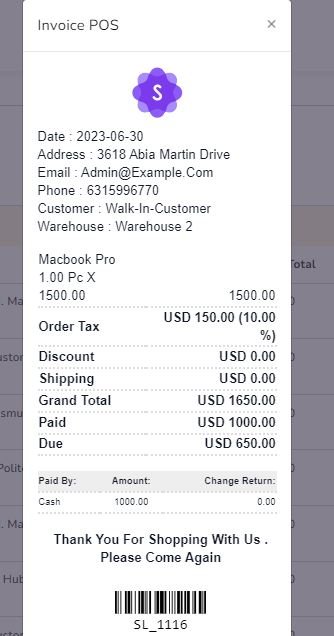
POS Invoice
Purchases
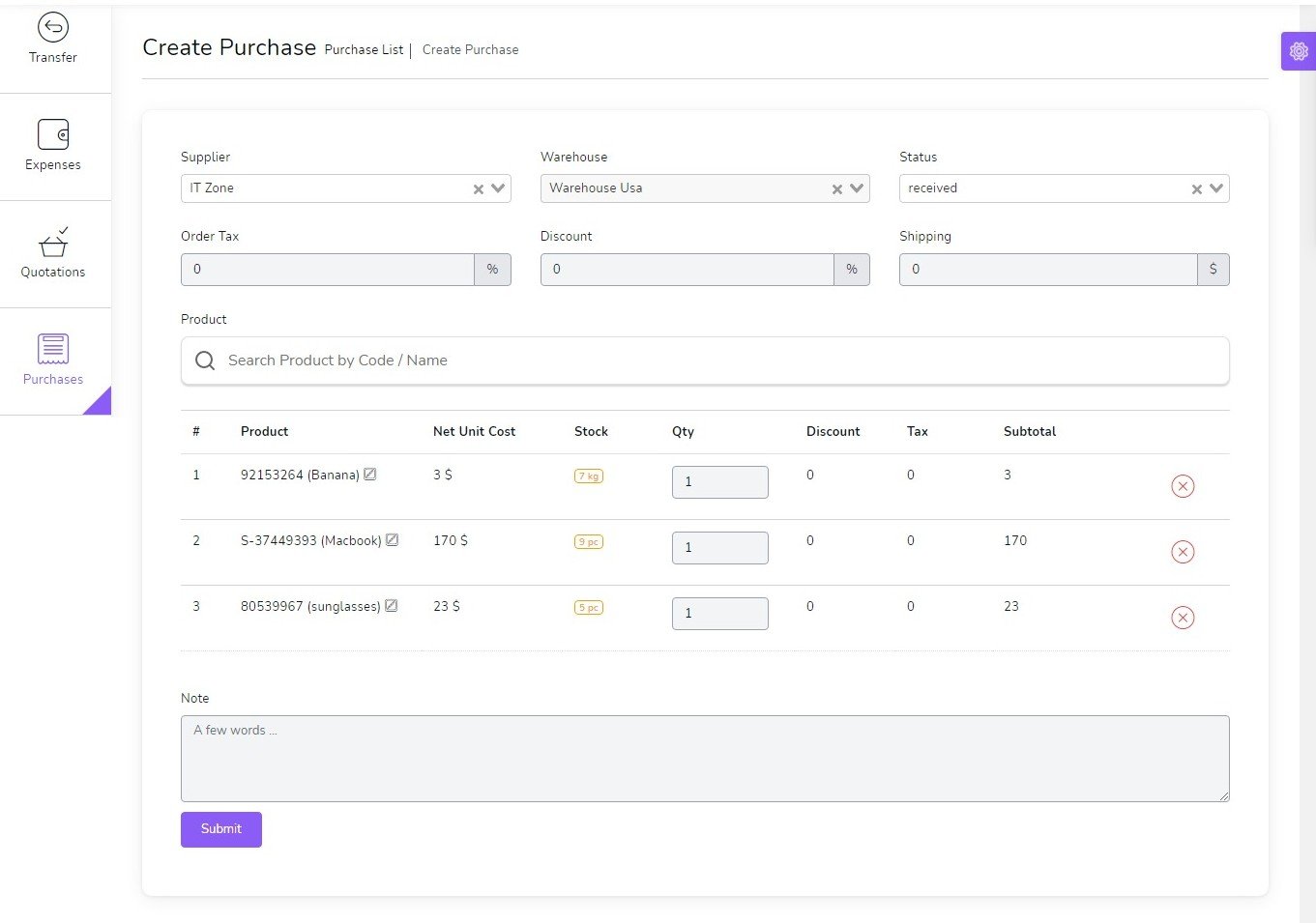
to create a new purchase it's very easy
- Supplier
(required) - Warehouse
(required) - Status
(required)
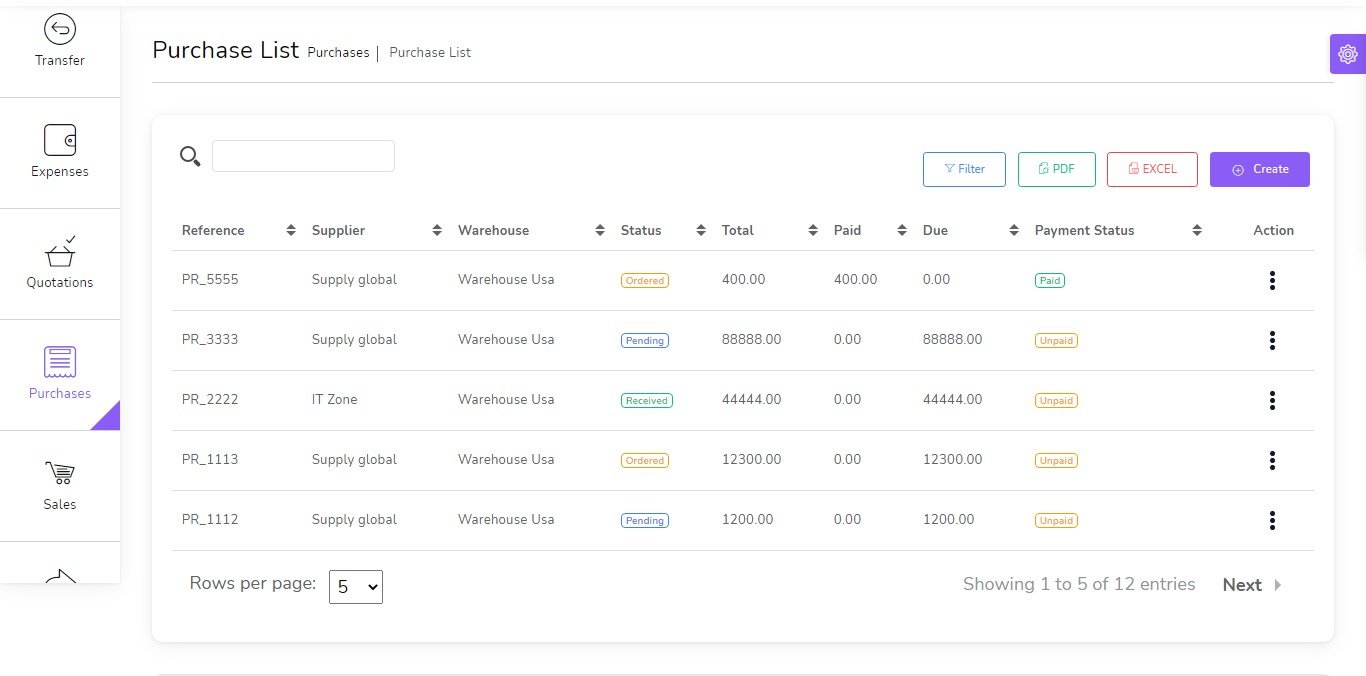
You can manage purchase list
- Edit purchase
- View Details purchase
- Delete purchase
- Send purchase on email
- Generate purchase list in PDF
- Generate purchase list in Excel
- Filter purchase by Date, Reference , Supplier , Warehouse , Status , Payment status
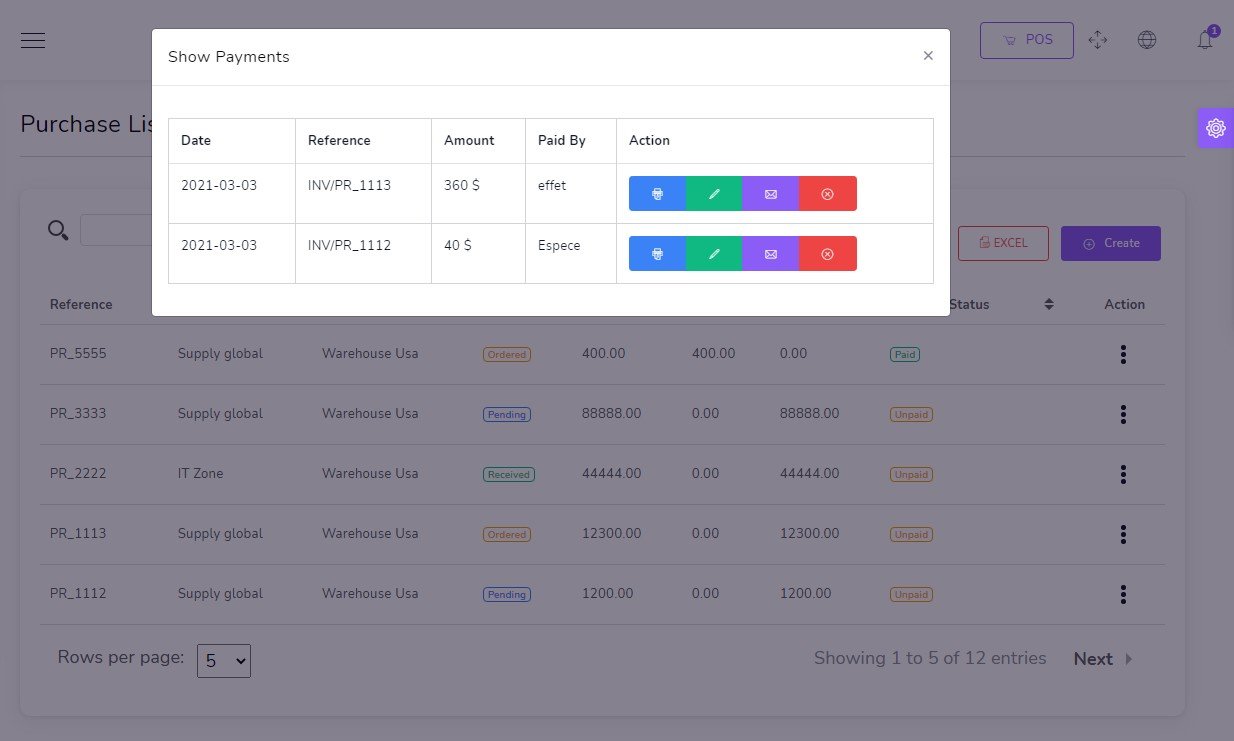
Show Payment
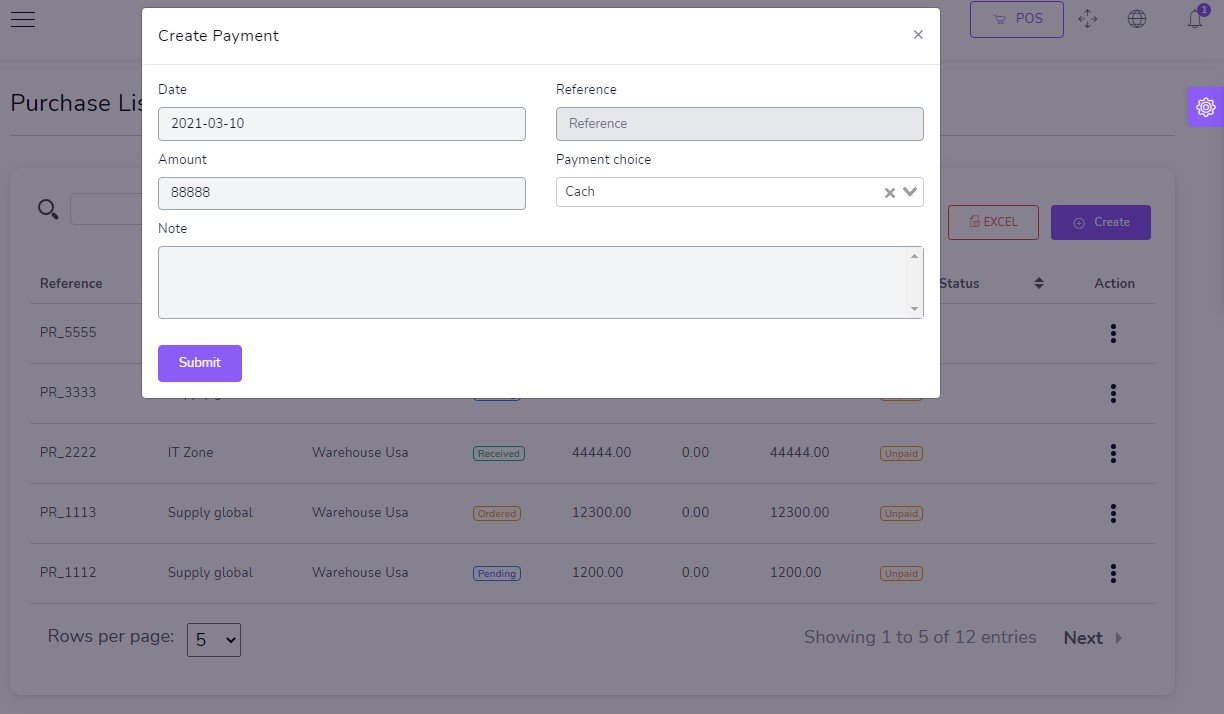
Add Payment
Sale Returns
to create a new Sale Return it's very easy
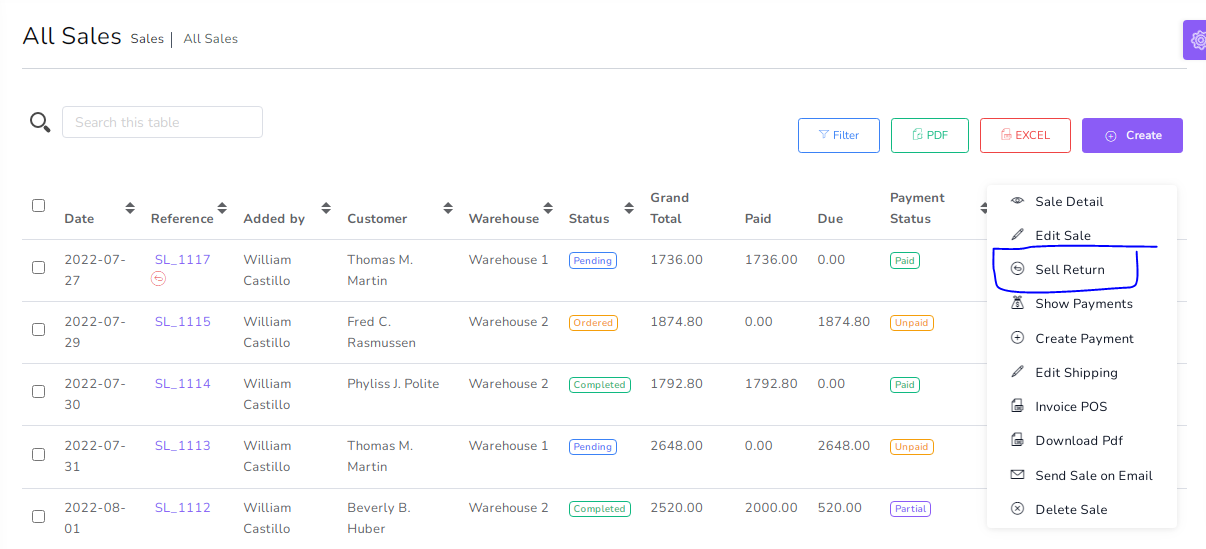
You can manage Sale Return list
- Edit Sale Return
- View Details Sale Return
- Delete Sale Return
- Send Sale Return on email
- Generate Sale Return list in PDF
- Generate Sale Return list in Excel
- Filter Sale Return by Date, Reference , Customer , Warehouse , Status , Payment status
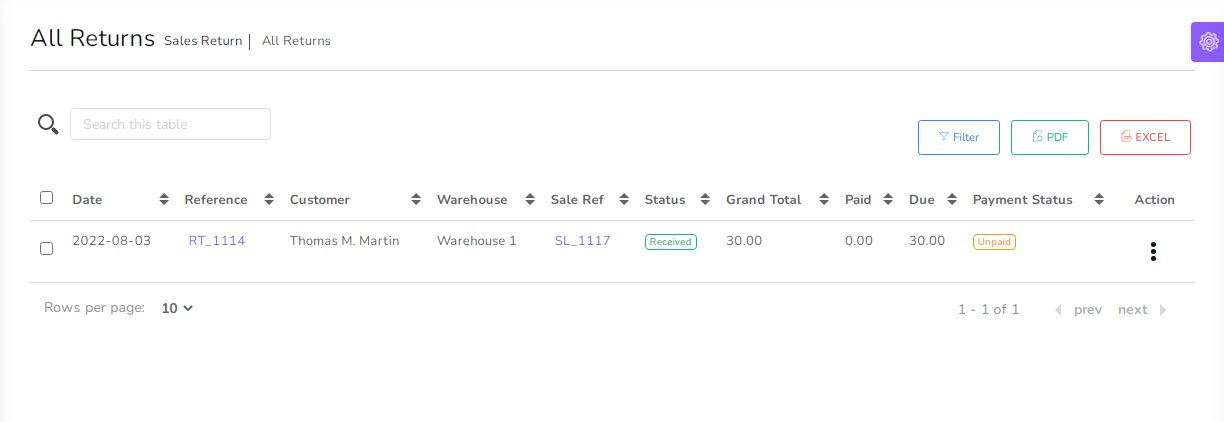
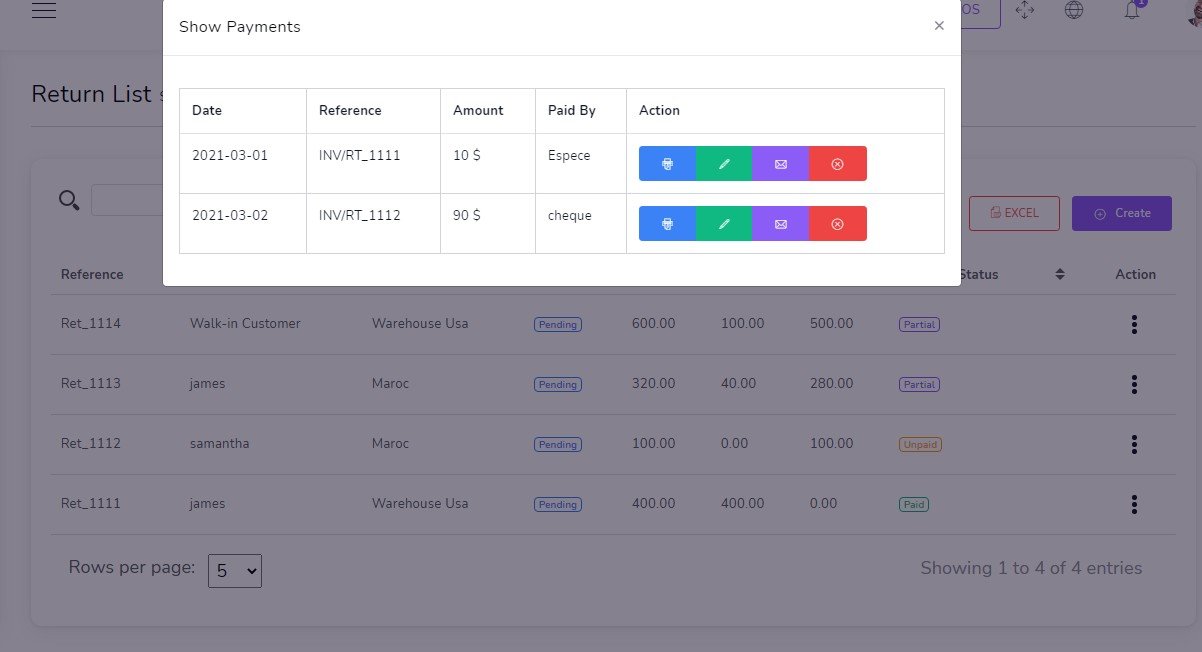
Show Payment
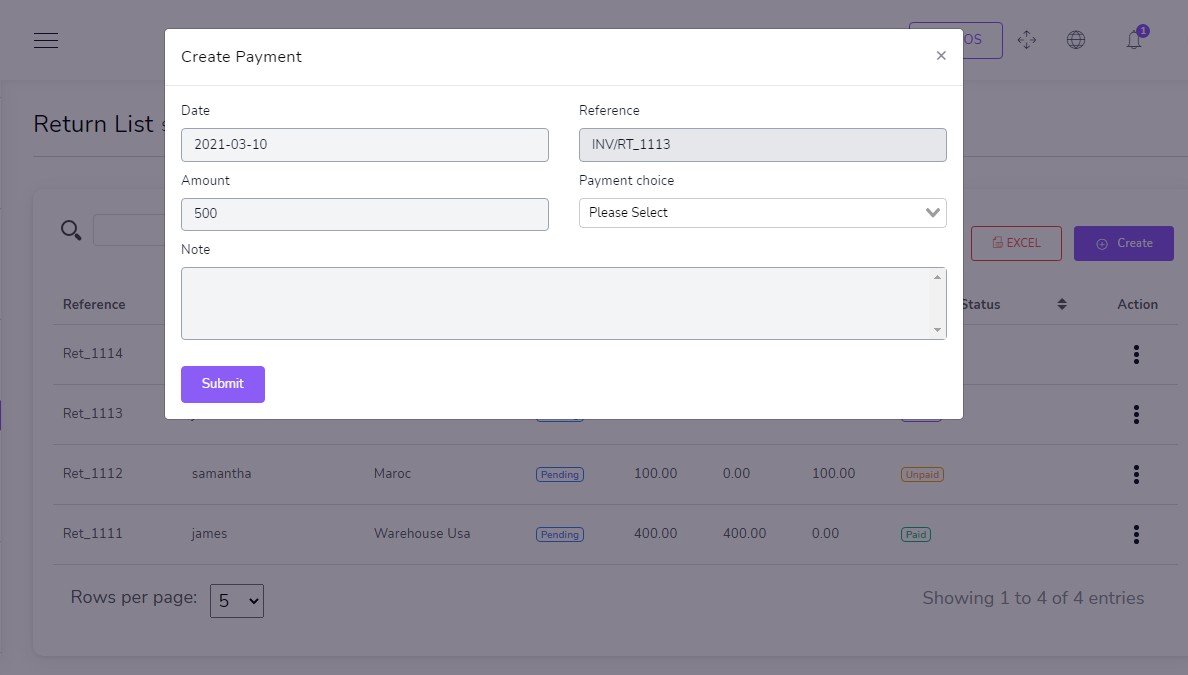
Add Payment
Purchase Returns
to create a new Purchase Return it's very easy
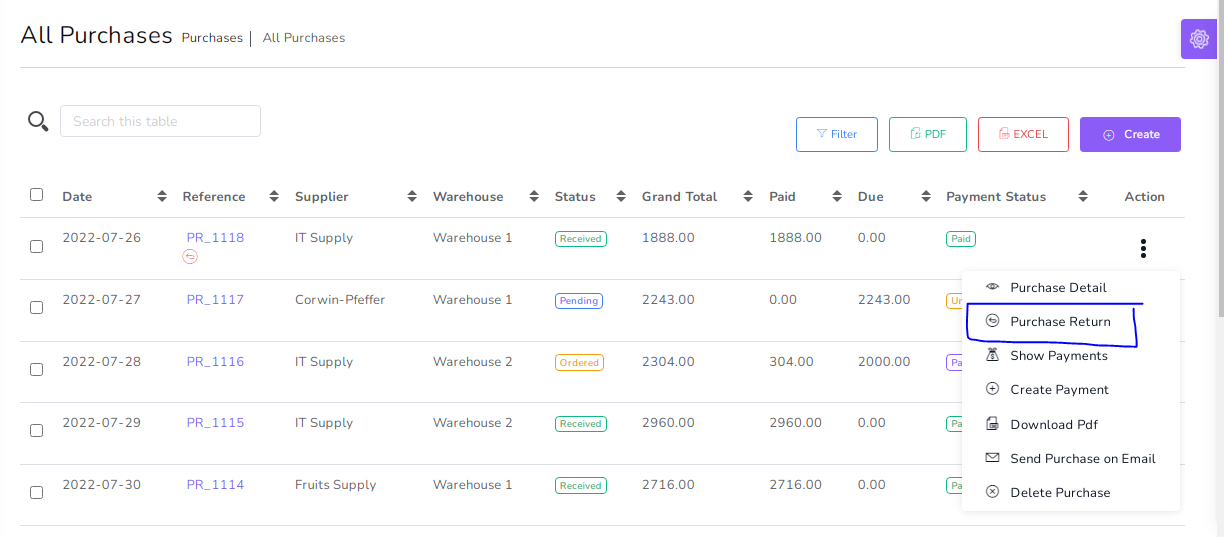
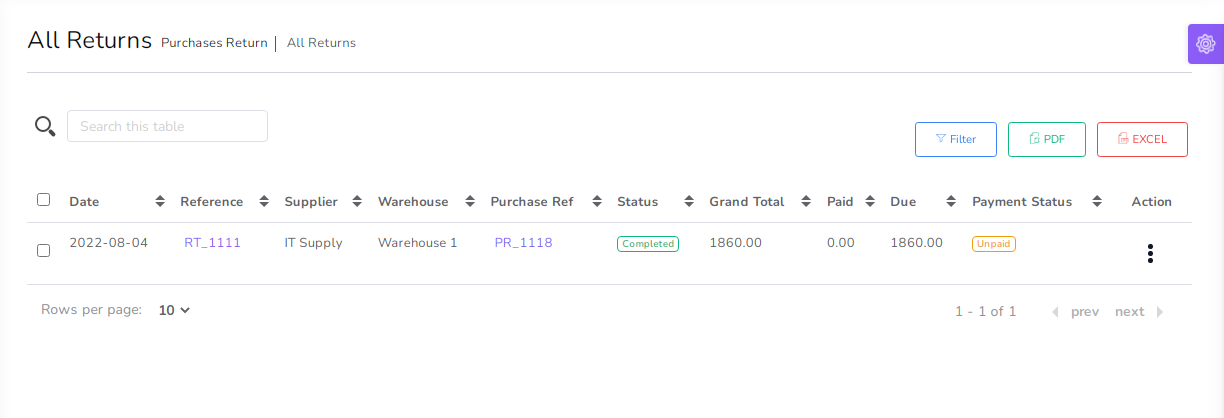
You can manage Purchase Return list
- Edit Purchase Return
- View Details Purchase Return
- Delete Purchase Return
- Send Purchase Return on email
- Generate Purchase Return list in PDF
- Generate Purchase Return list in Excel
- Filter Purchase Return by Date, Reference , Supplier , Warehouse , Status , Payment status
Show Payment
Add Payment
Customers
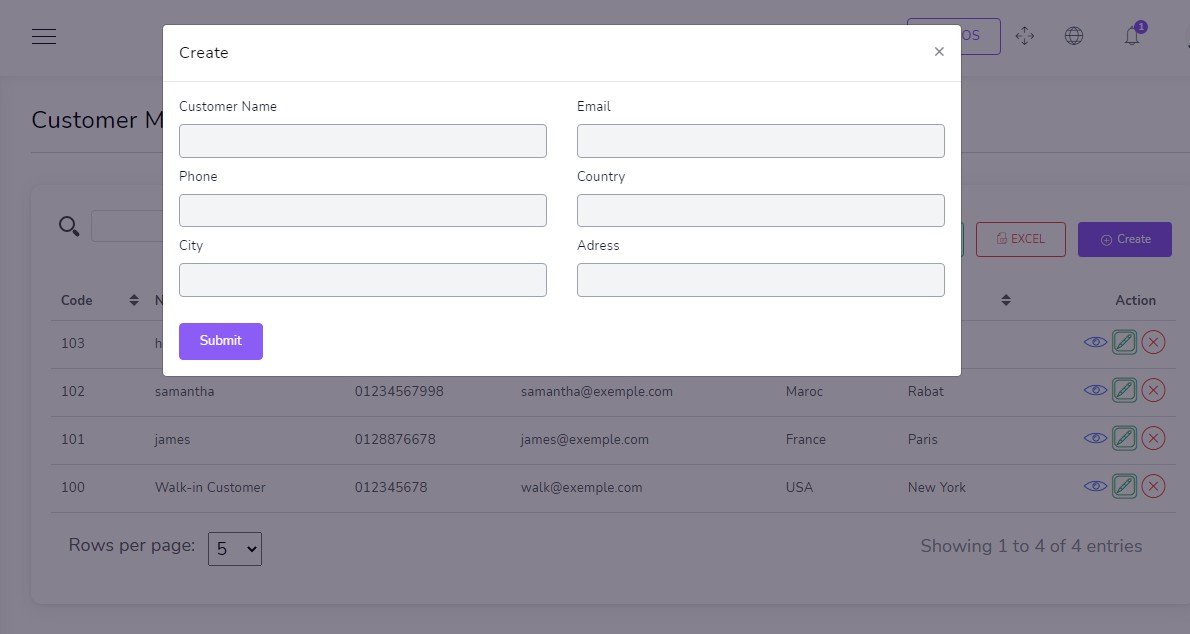
to create a new Customer it's very easy
- Name
(required) - Email
(required)
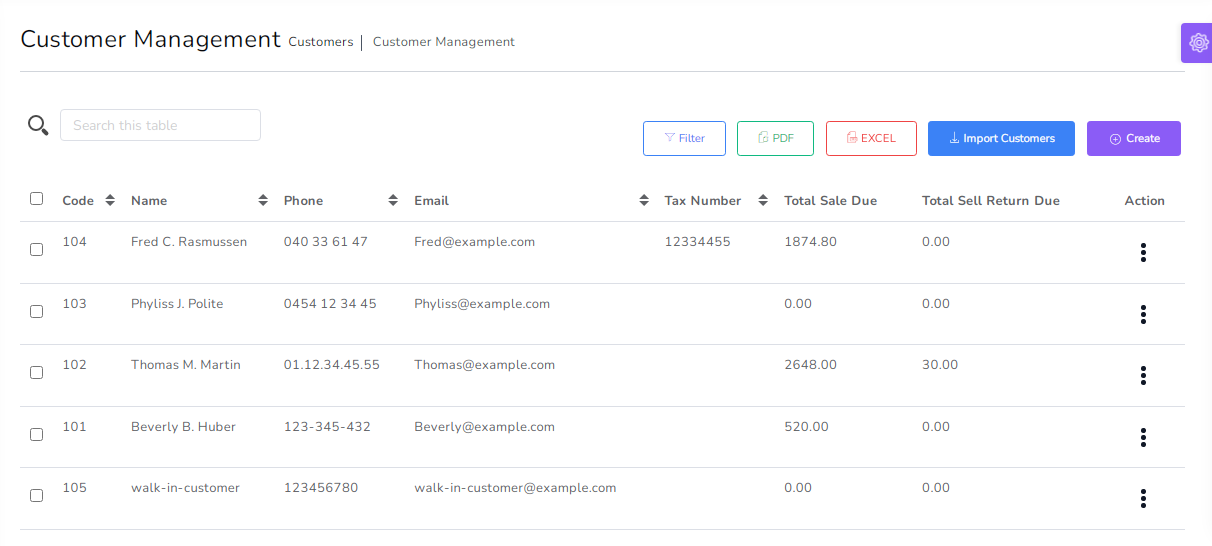
You can manage customer list
- Pay all sell due in single payment
- Pay all sell Return due in single payment
- Edit customer
- Delete customer
- Generate customer list in PDF
- Generate customer list in Excel
- Search customer
- Filter customer by Name ,Code , phone , Email
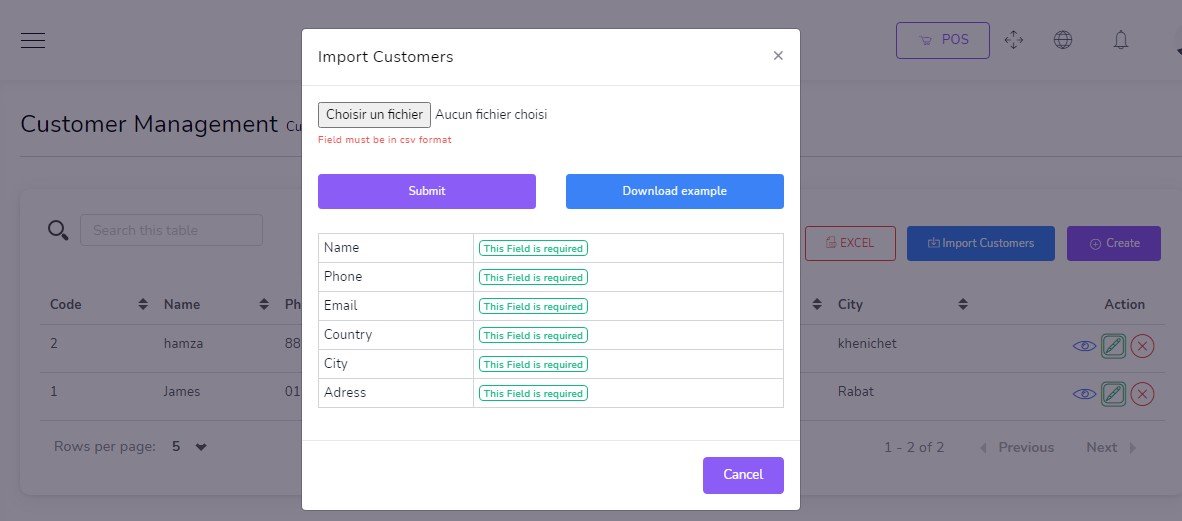
Import Customers by csv
Suppliers
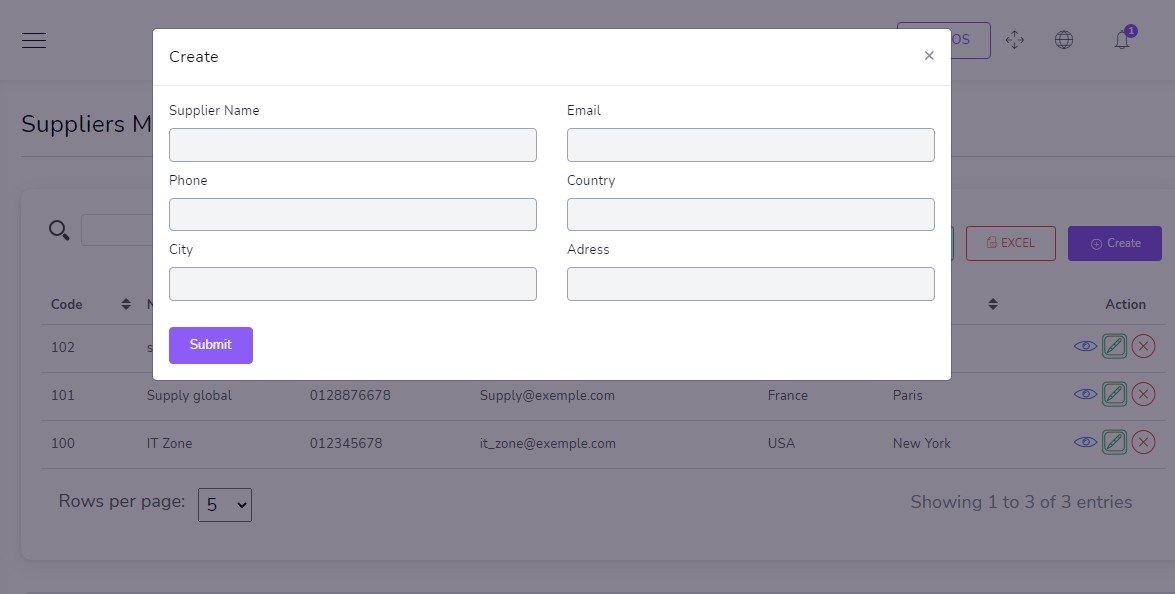
to create a new Supplier it's very easy
- Name
(required) - Email
(required)
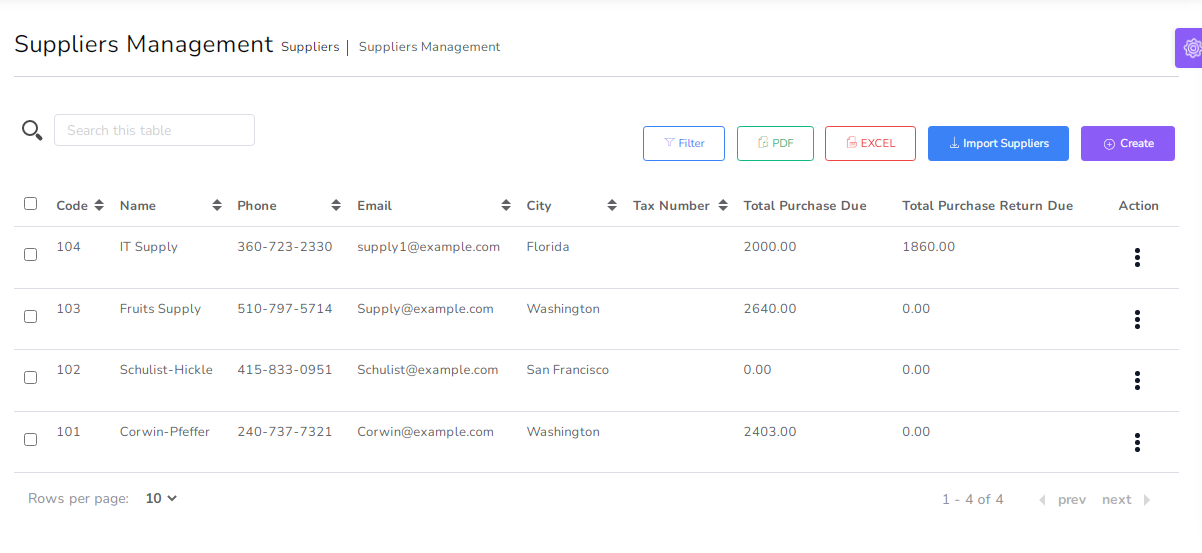
You can manage Supplier list
- Pay all Purchase due in single payment
- Pay all Purchase Return due in single payment
- Edit Supplier
- Delete Supplier
- Generate Supplier list in PDF
- Generate Supplier list in Excel
- Search Supplier
- Filter customer by Name ,Code , phone , Email
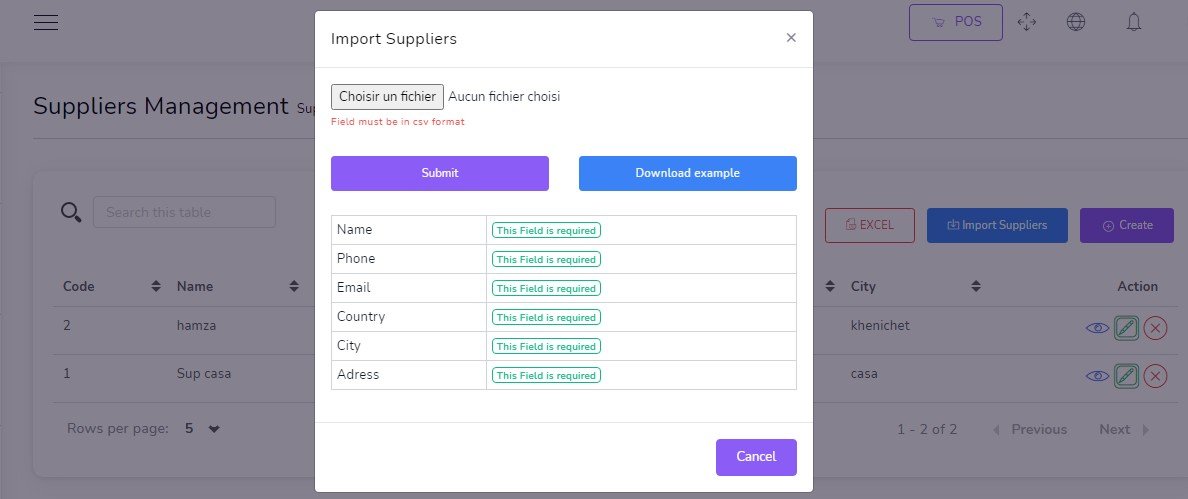
Import Suppliers by csv
Users
to create a new User it's very easy
- First Name
(required) - Last Name
(required) - Username
(required) - Phone
(required) - Email
(required) - Password
(required) - Role
(required) - Avatar
(Optional)
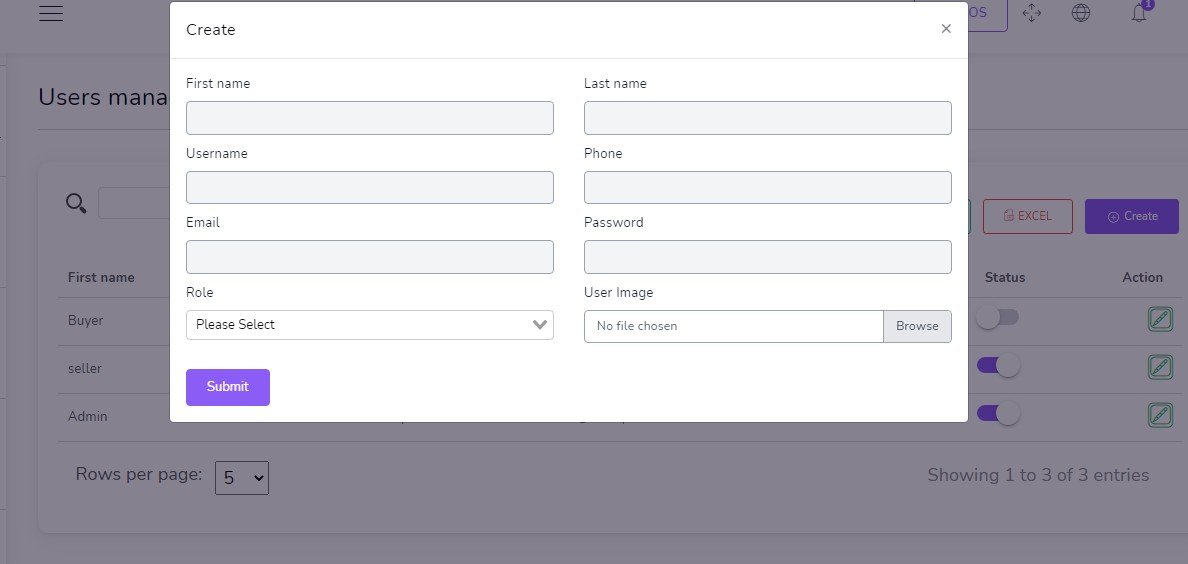
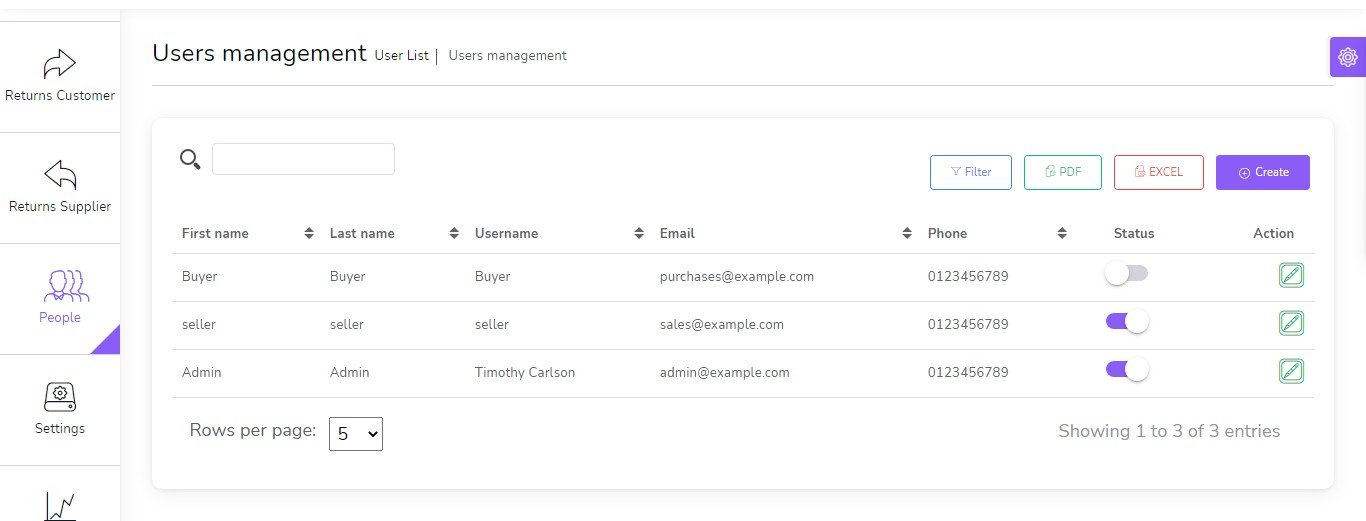
You can manage User list
- Change Status User
- Edit User
- Generate User list in PDF
- Generate User list in Excel
- Search User
- Filter User by username , phone , Email , Status
📁 Project List
This section displays an overview of all the projects in the system, including their current status.

- ✅ Completed: Number of finished projects.
- ⏸️ Not Started: Projects created but not yet started.
- 🔄 In Progress: Projects that are currently active.
- ❌ Cancelled: Projects that have been cancelled.
Additional Features:
- 🔍 Search projects by title, customer, or company.
- 📤 Export project list to PDF or Excel.
- ➕ Click Create to add a new project.
📝 Create Project
This form allows users to register a new project with complete details.

- Title*: Enter the name of the project.
- Start Date*: Set when the project begins.
- Finish Date*: Set when the project should be completed.
- Customer*: Choose the client or project owner.
- Company*: Select the company responsible for the project.
- Assigned Employees: Assign a team to work on the project.
- Status*: Set the current status of the project.
- Details: Add any relevant notes or information.
🗂️ Task List
This section provides an overview of all tasks associated with various projects.

- ✅ Completed: Tasks that have been marked as done.
- ⏸️ Not Started: Tasks that are created but not yet started.
- 🔄 In Progress: Tasks currently being worked on.
- ❌ Cancelled: Tasks that were canceled or no longer required.
Other Features:
- 🔍 Search tasks by title, project, or company.
- 📤 Export task list to PDF or Excel format.
- ➕ Use the Create button to add a new task.
📝 Create Task
This form allows you to create a new task and assign it to a project and team.

- Title*: Task title or short description.
- Start Date*: The date work on the task should begin.
- Finish Date*: The date the task is expected to be completed.
- Project*: Select the related project this task belongs to.
- Company*: Company responsible for the task execution.
- Assigned Employees: Select which team members will perform this task.
- Status*: Choose the current state of the task (e.g. Not Started, In Progress).
- Details: Additional information or notes regarding the task.
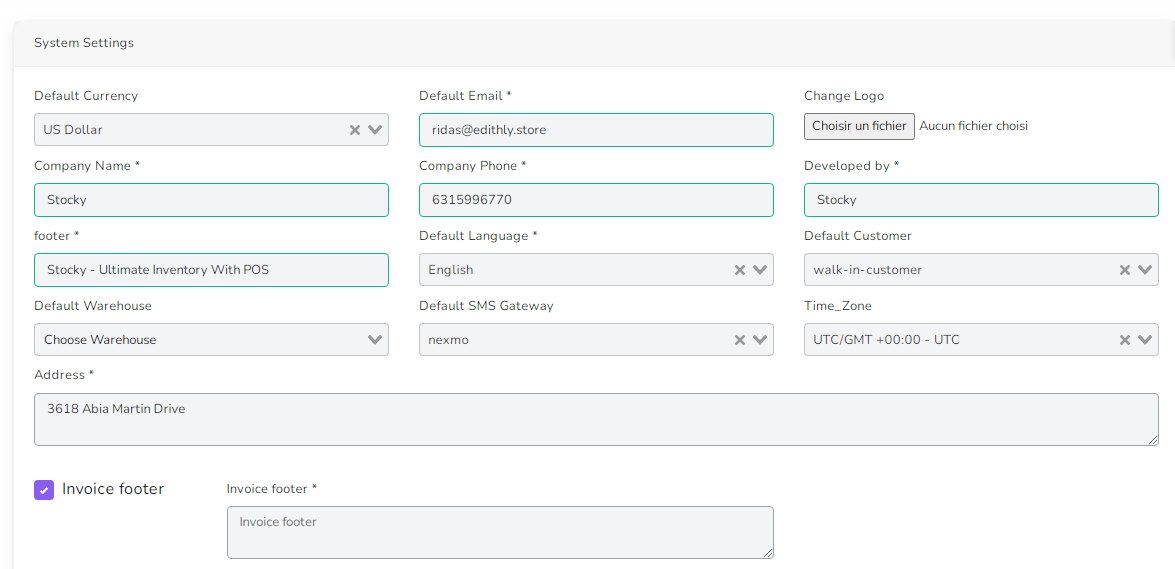
System Settings
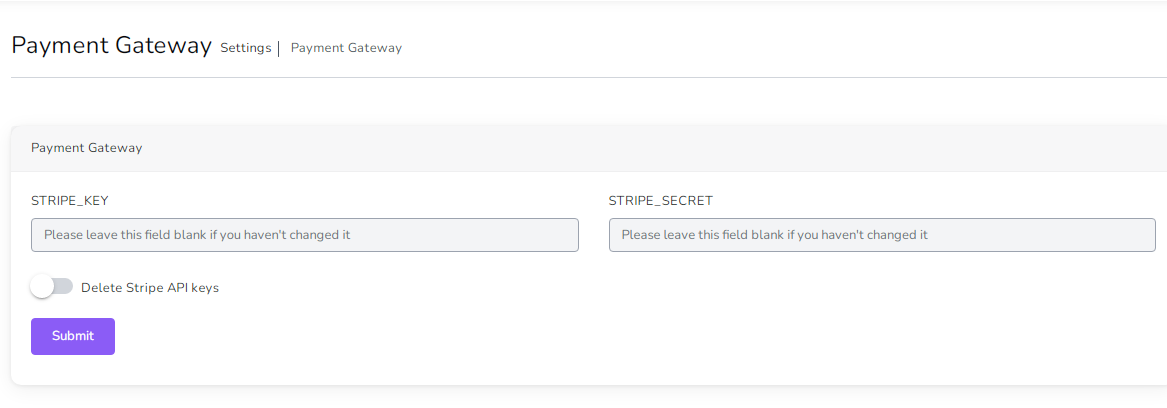
Payment Settings
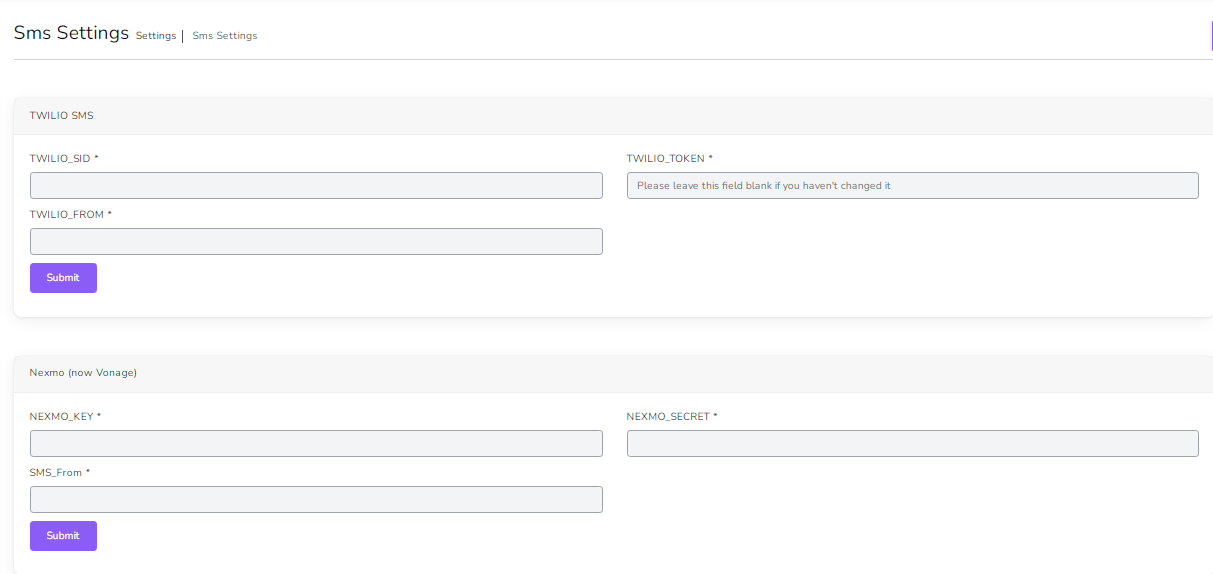
SMS Settings
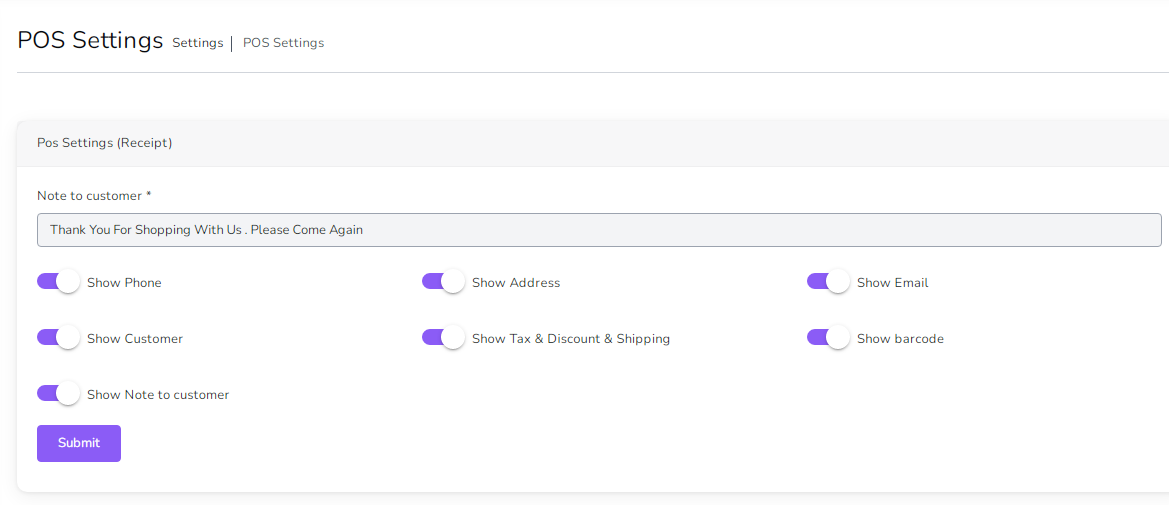
POS Settings
Mail Settings
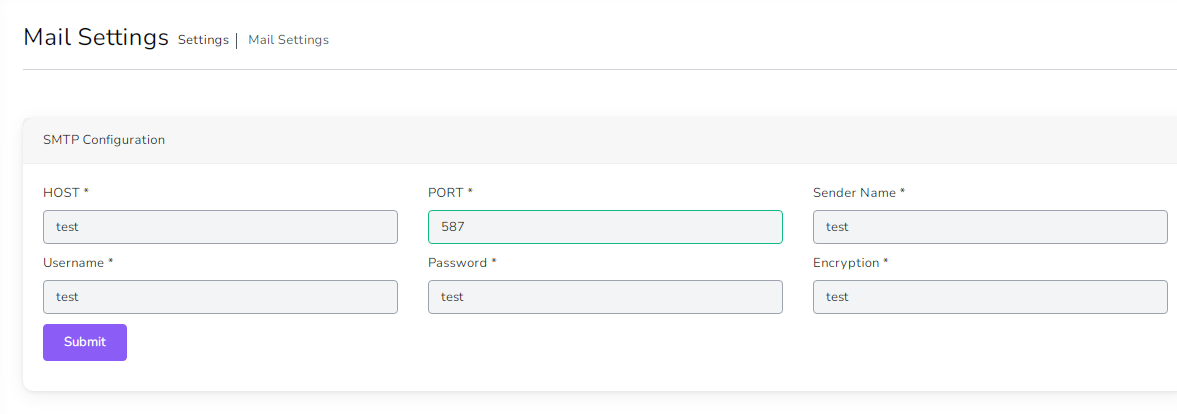
- Host : Host smtp mail server
- Port : 25 or 587 or 465 or 2525)
- Sender Name : From Name
- username : your username smtp mail server
- password : your password smtp mail server
- Encryption : tls or ssl
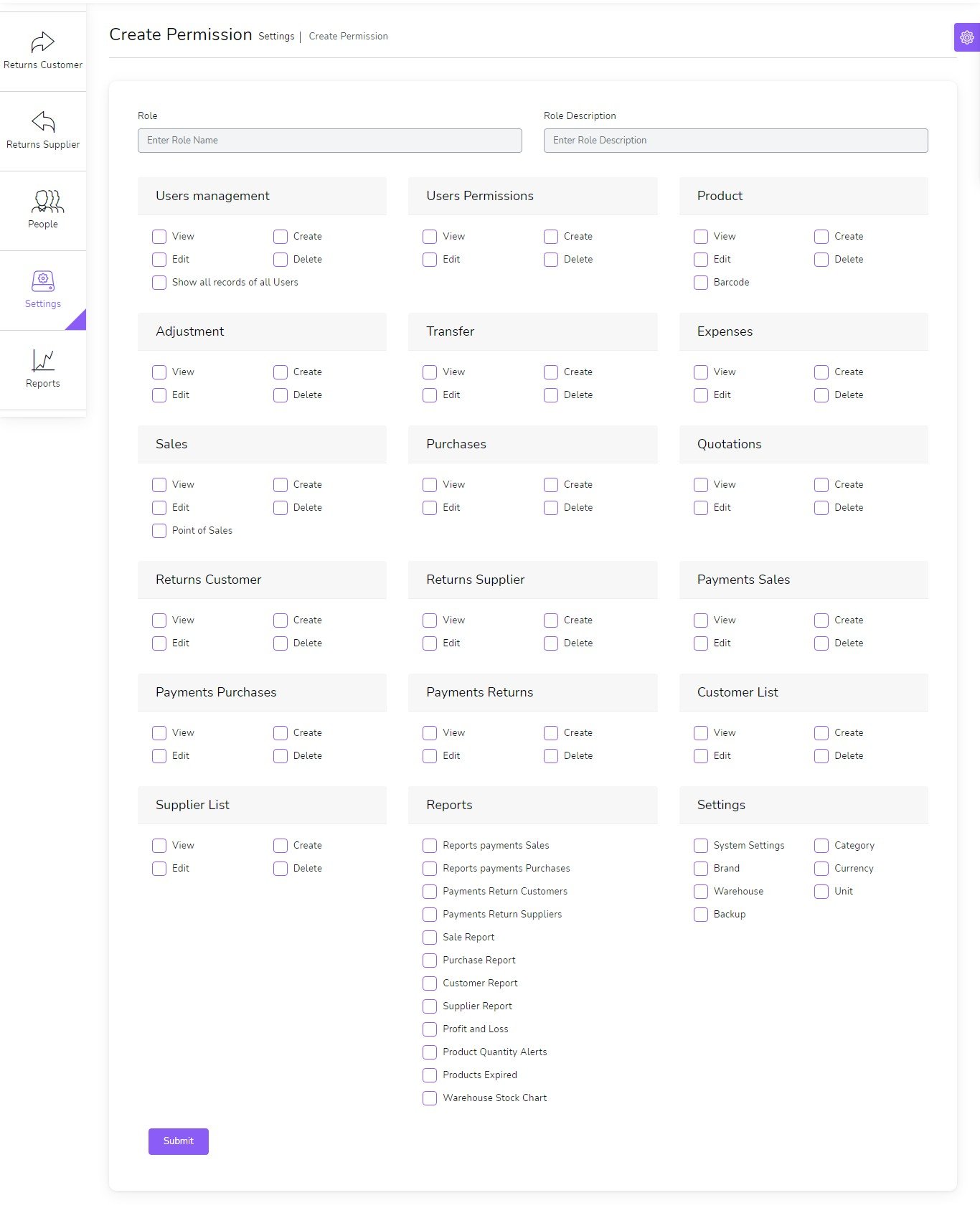
More Than 110 Permissions
if you want show all records of all users , Check Show all records of all users
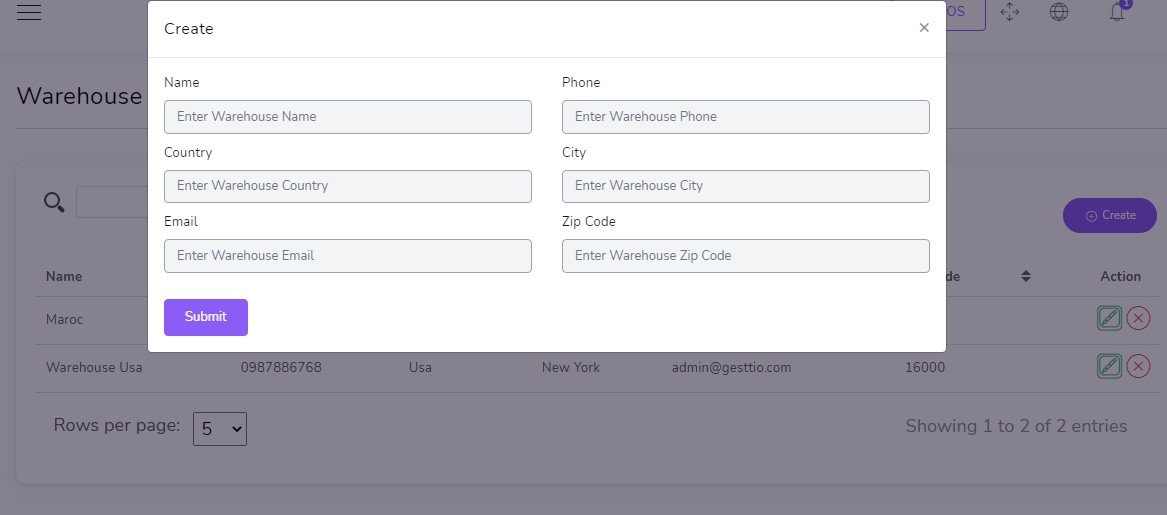
Create new Warehouse
- Name
(required) - Phone
(optional) - Country
(optional) - City
(optional) - Email
(optional) - Zip code
(optional)
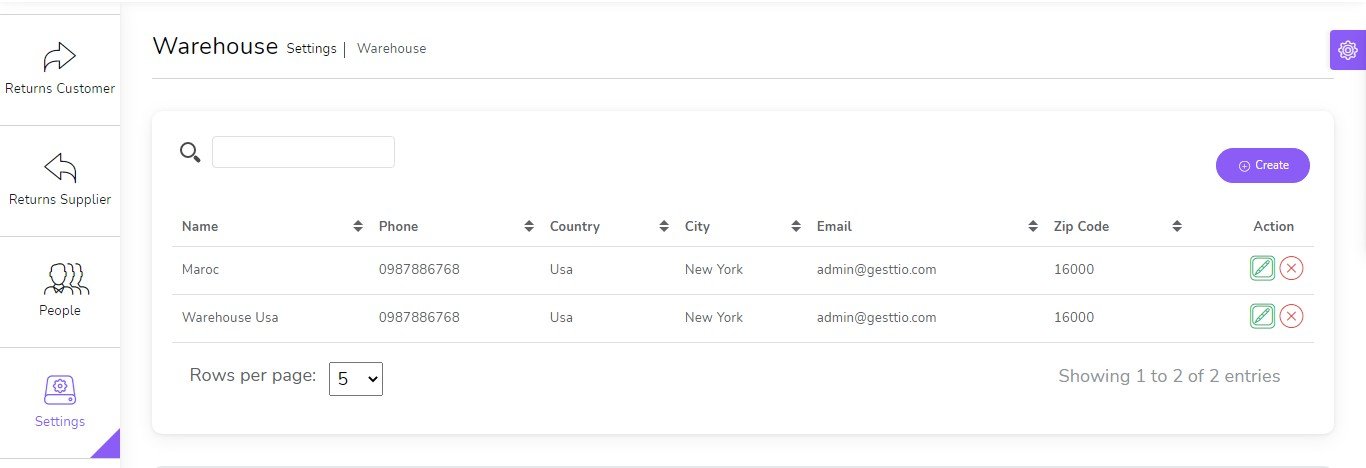
You can manage Warehouse list
- Edit Warehouse
- Delete Warehouse
- Search Warehouse
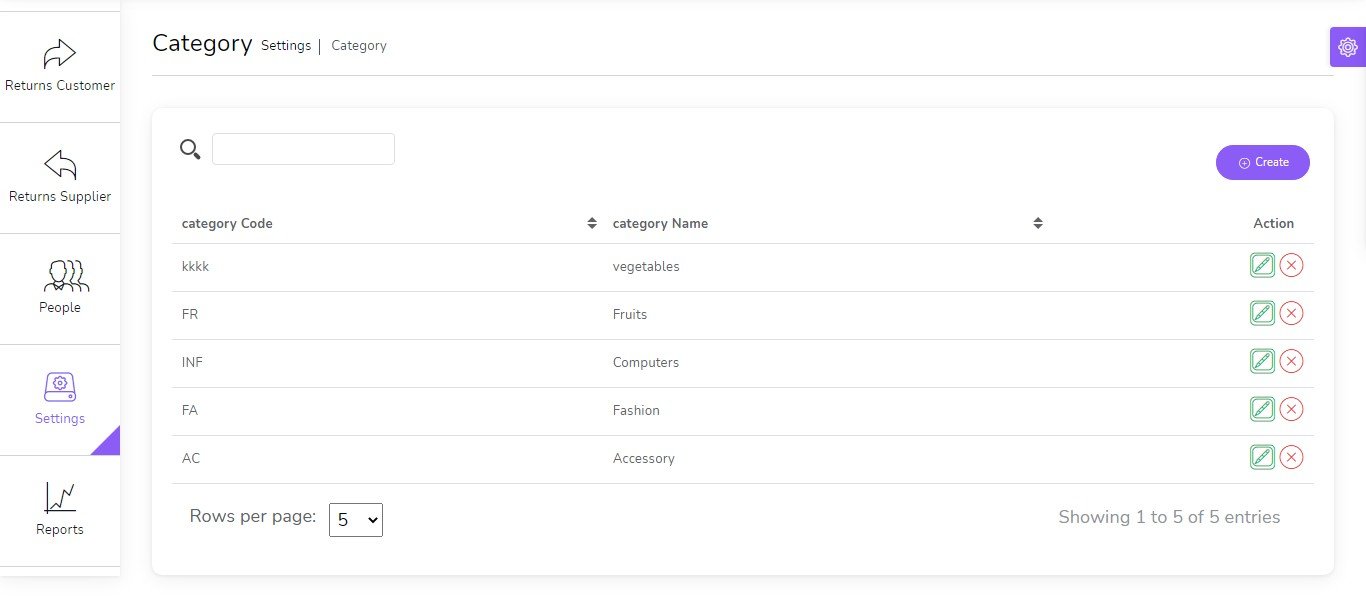
You can manage Category list
- Edit Category
- Delete Category
- Search Category
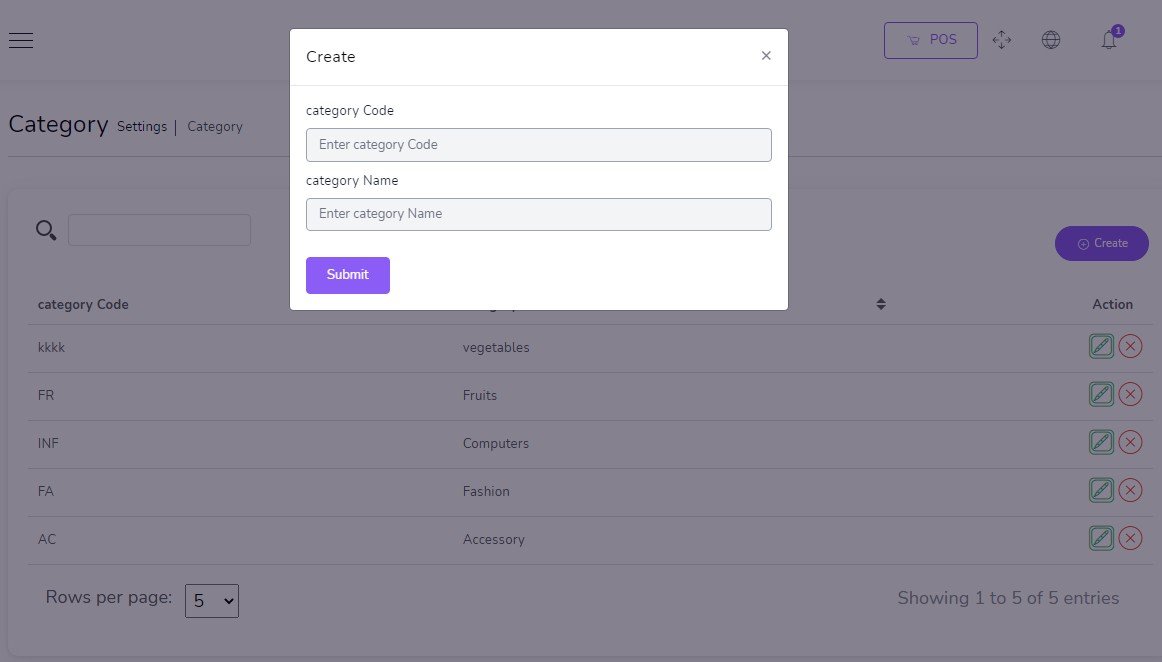
Create new Category
- Name
(required) - Code
(required)
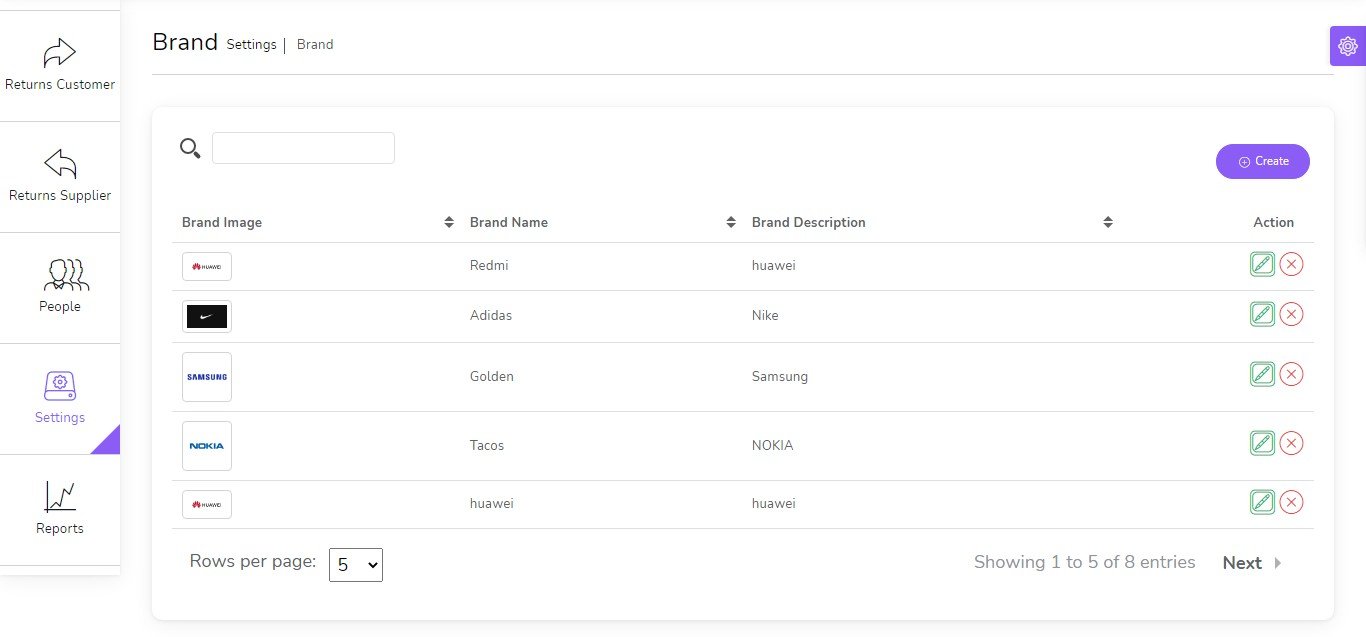
You can manage Brand list
- Edit Brand
- Delete Brand
- Search Brand
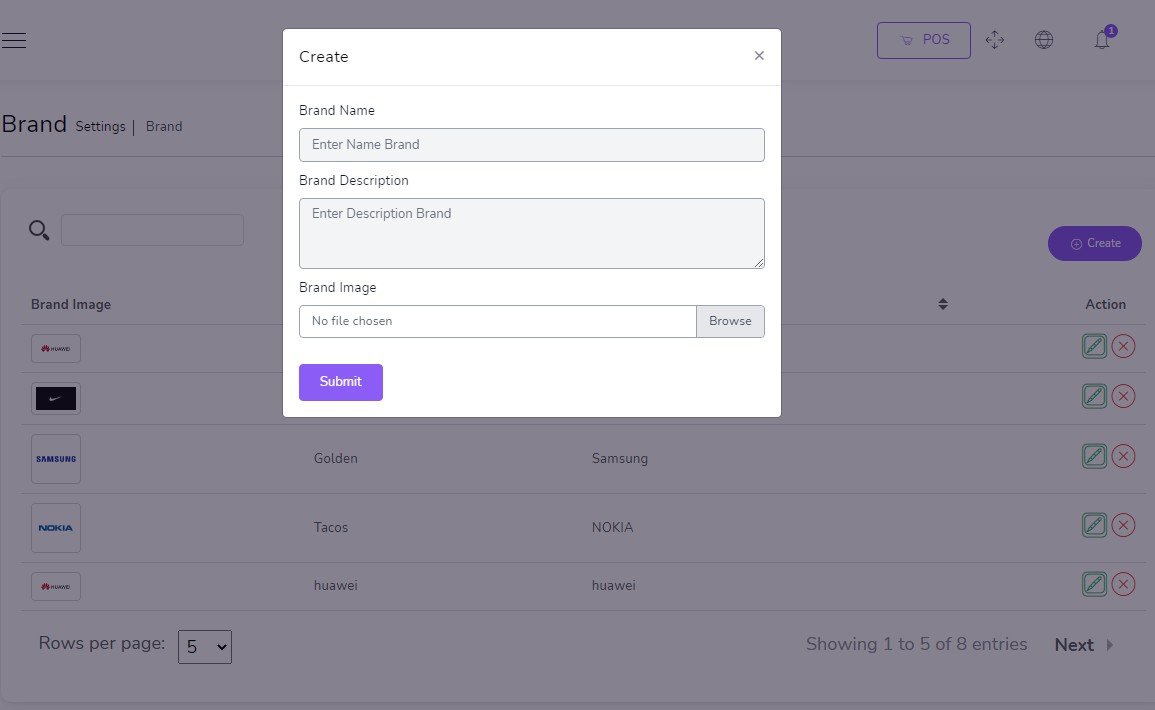
Create new Brand
- Name
(required) - Description
(optional) - Image
(optional)
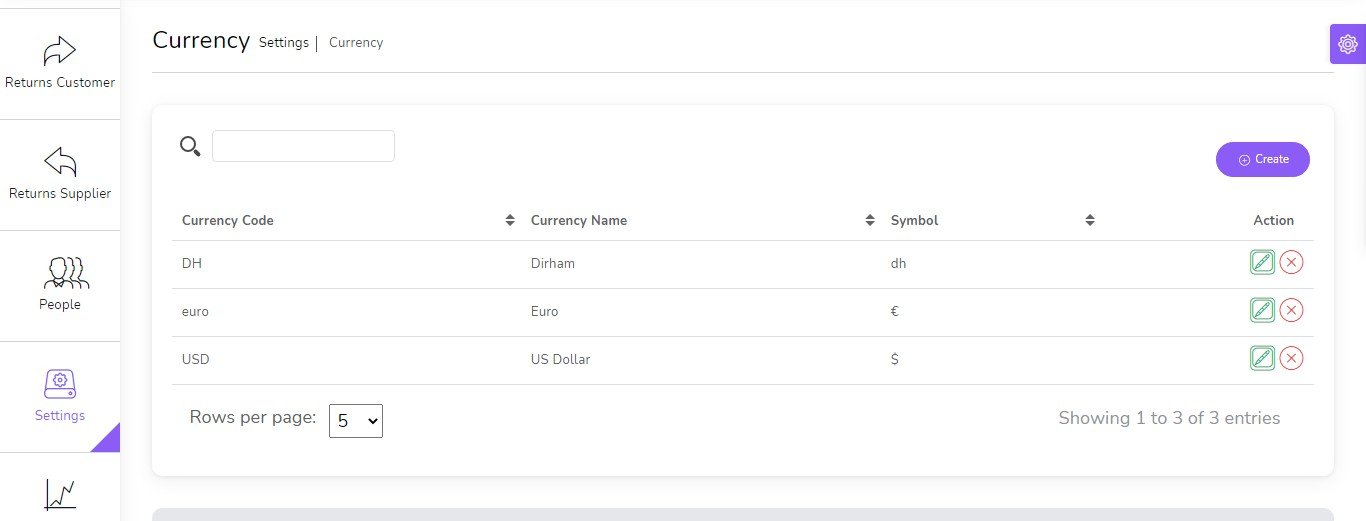
You can manage Currency list
- Edit Currency
- Delete Currency
- Search Currency
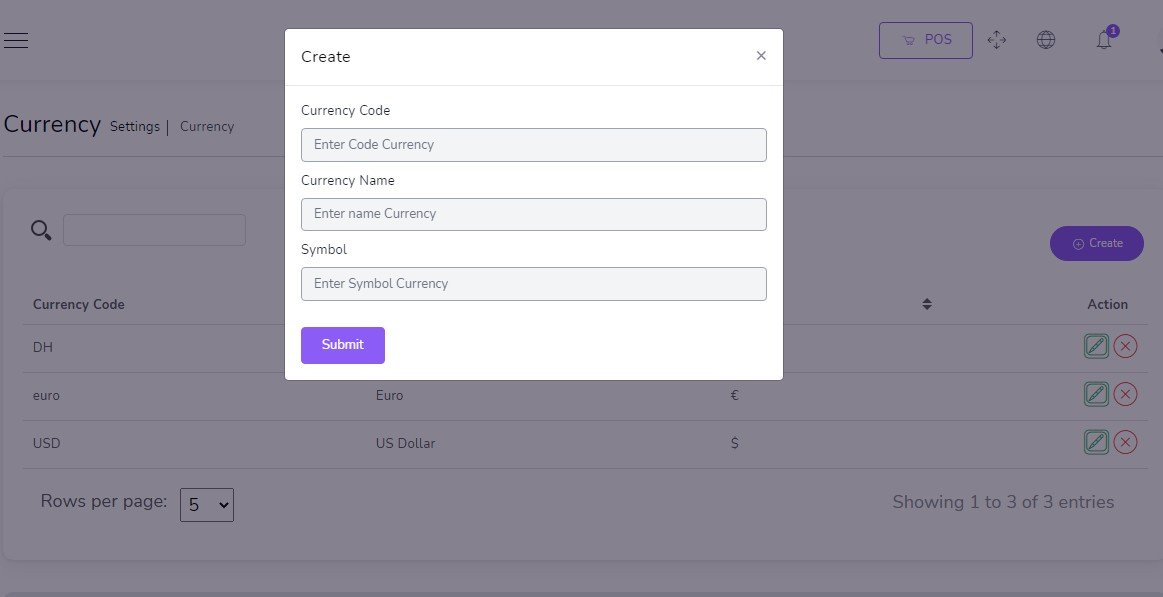
Create new Currency
No Live Exchange Just Symbol
- Code
(required) - Name
(required) - Symbol
(required)
You can manage Unit list
- Edit Unit
- Delete Unit
- Search Unit
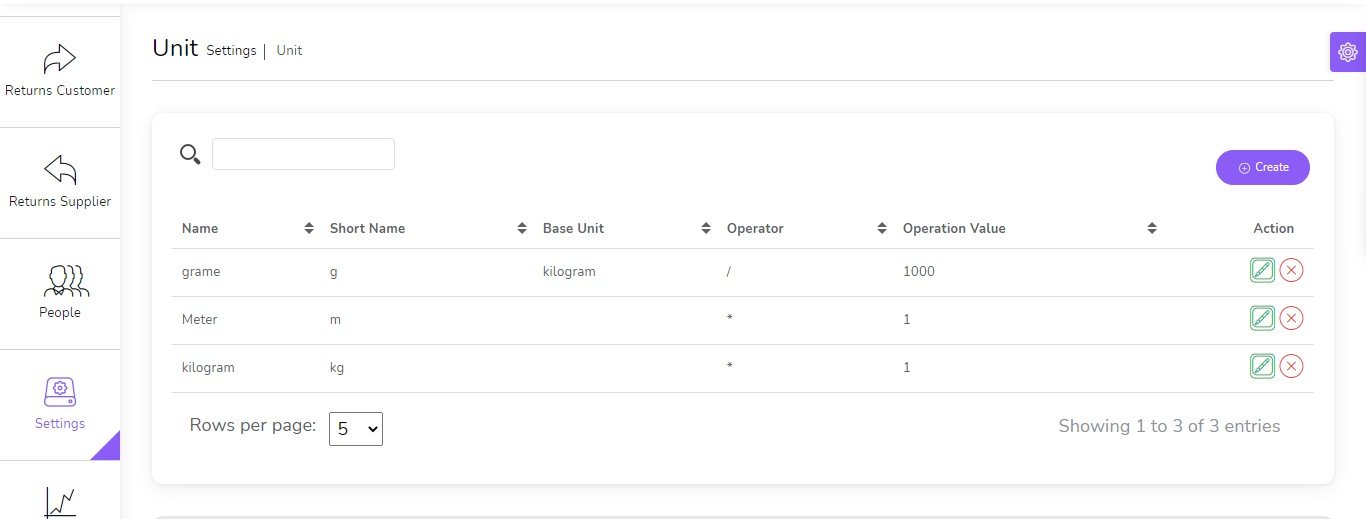
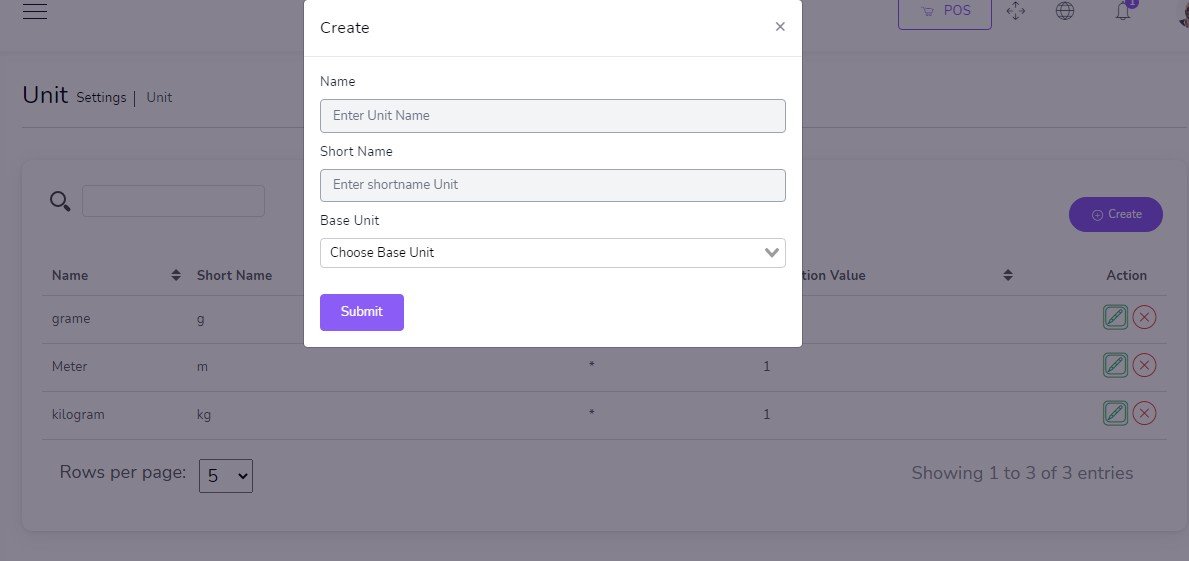
Create new Unit
- Name
(required) - Short Name
(required) - Base Unit
(optional)
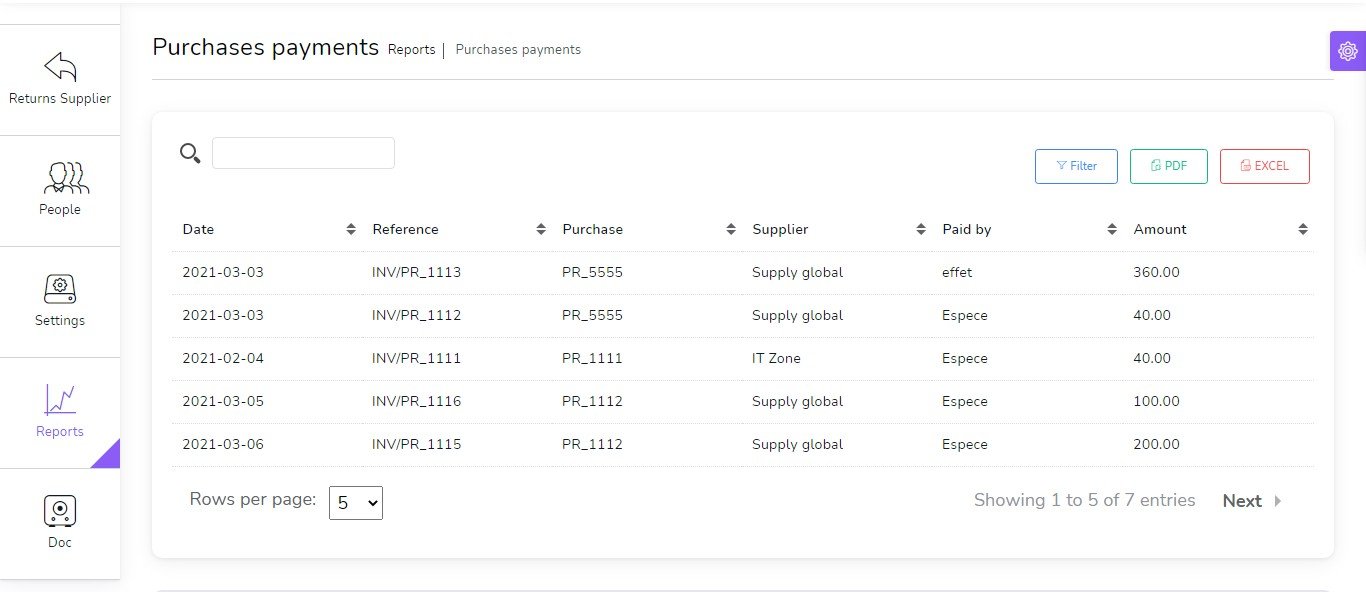
Reports
Payments Purchases
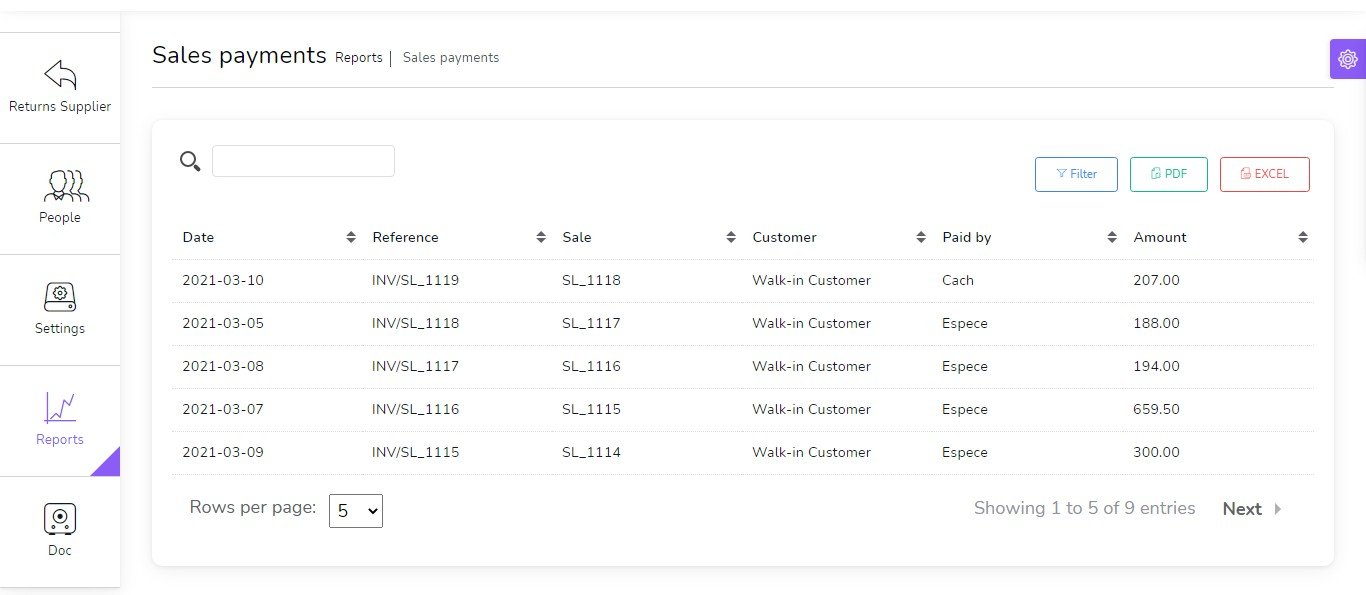
Payments Sales
Profit & Loss
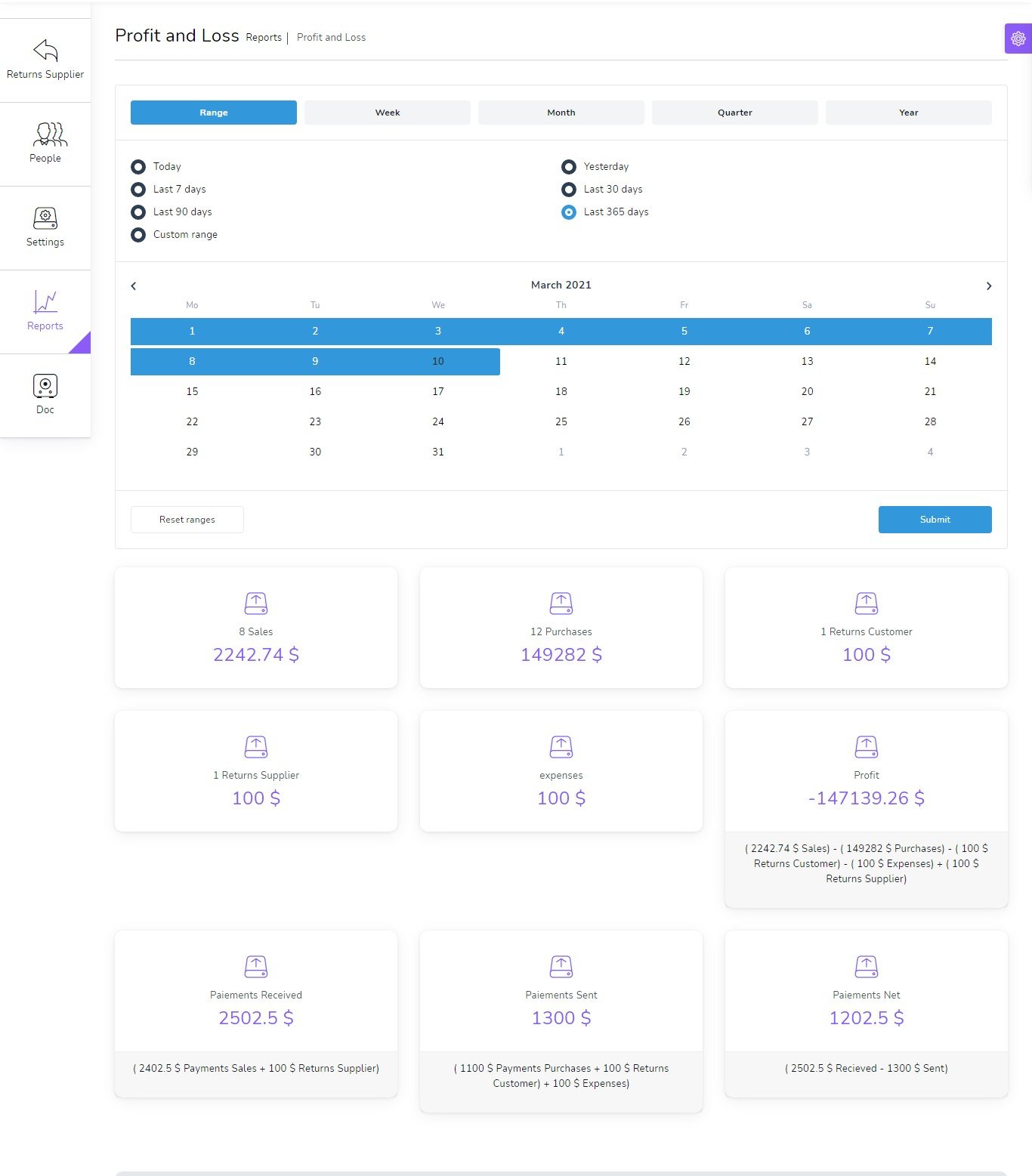
Inventory Valuation

Expenses Report

Deposits Report

Product Alert
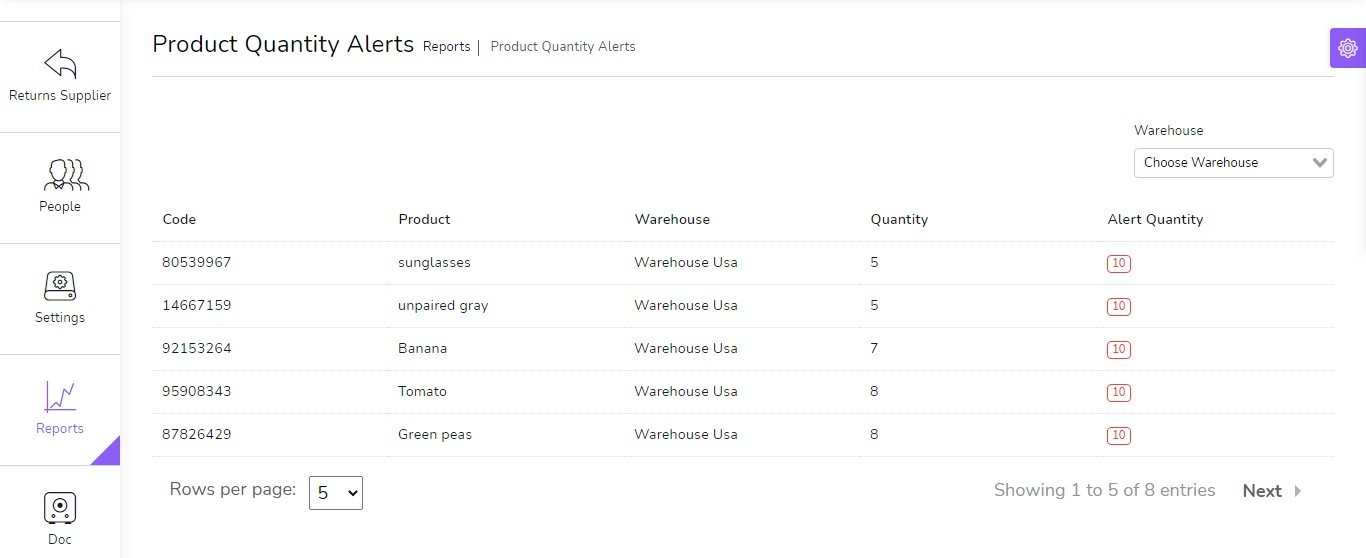
Warehouse report
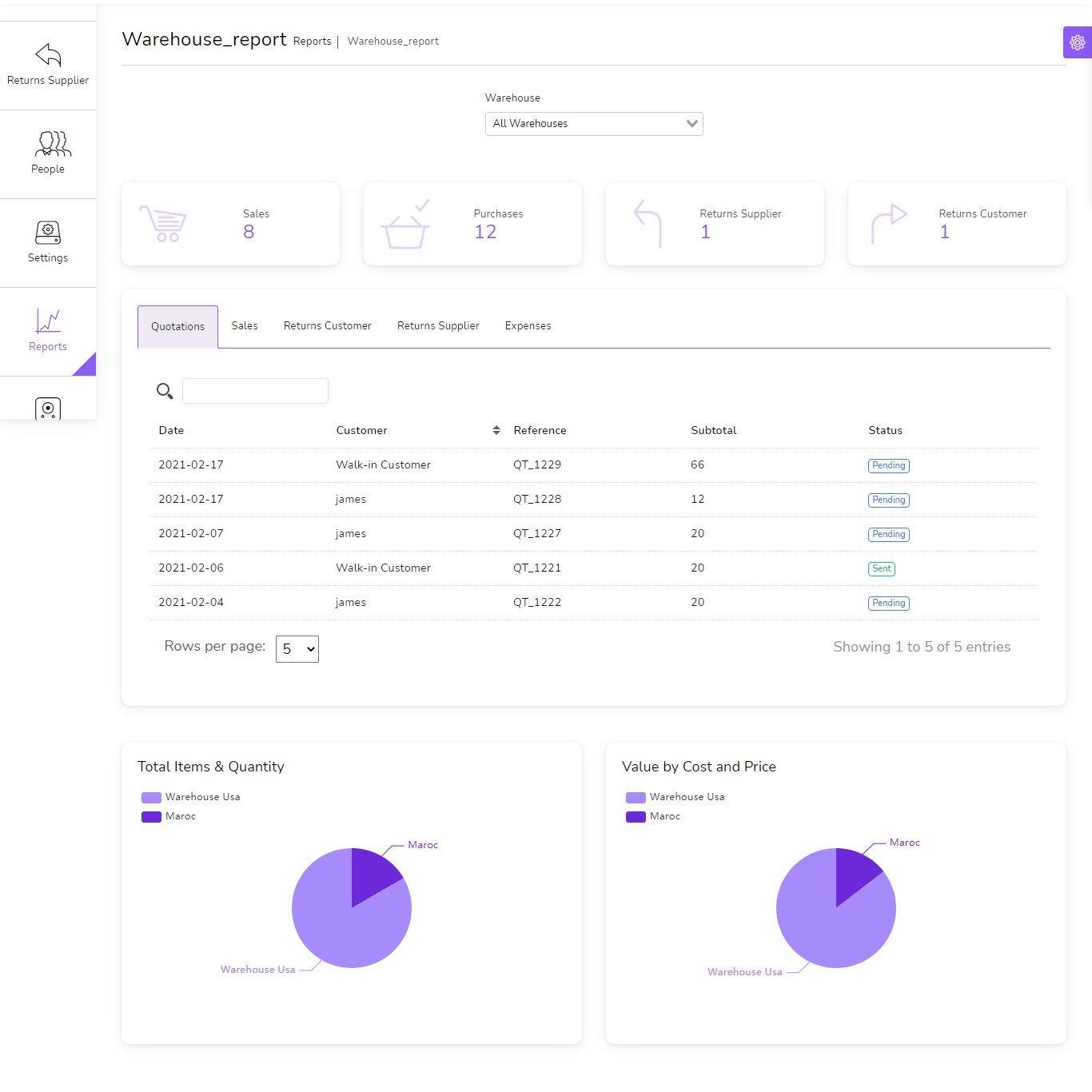
Sales report
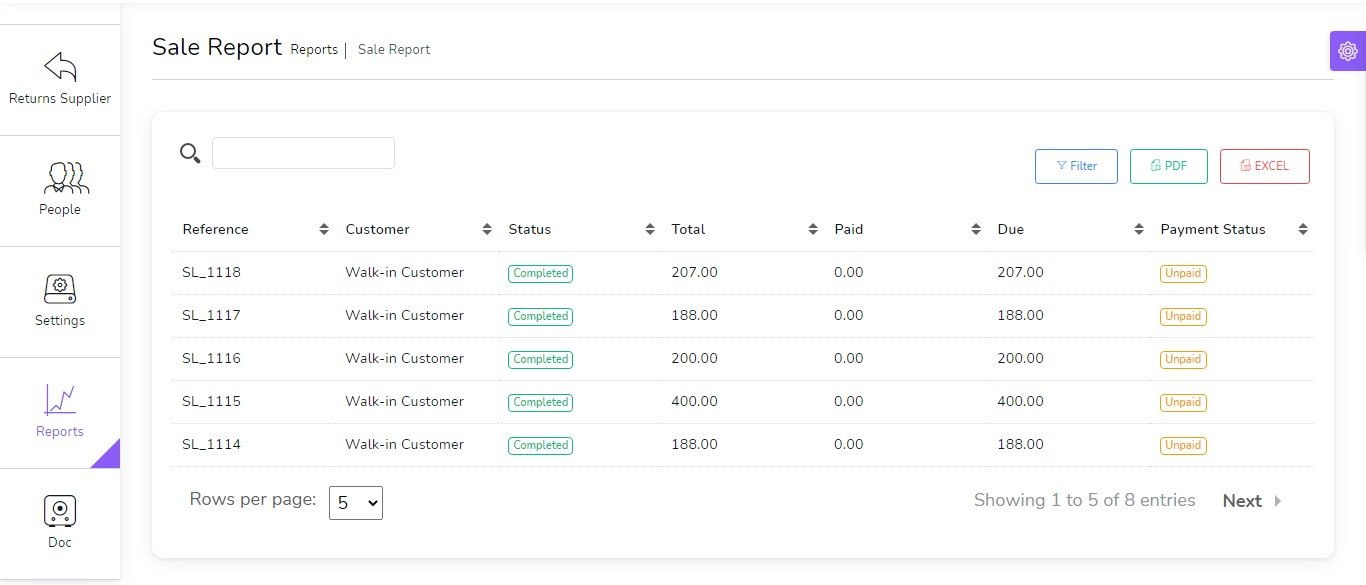
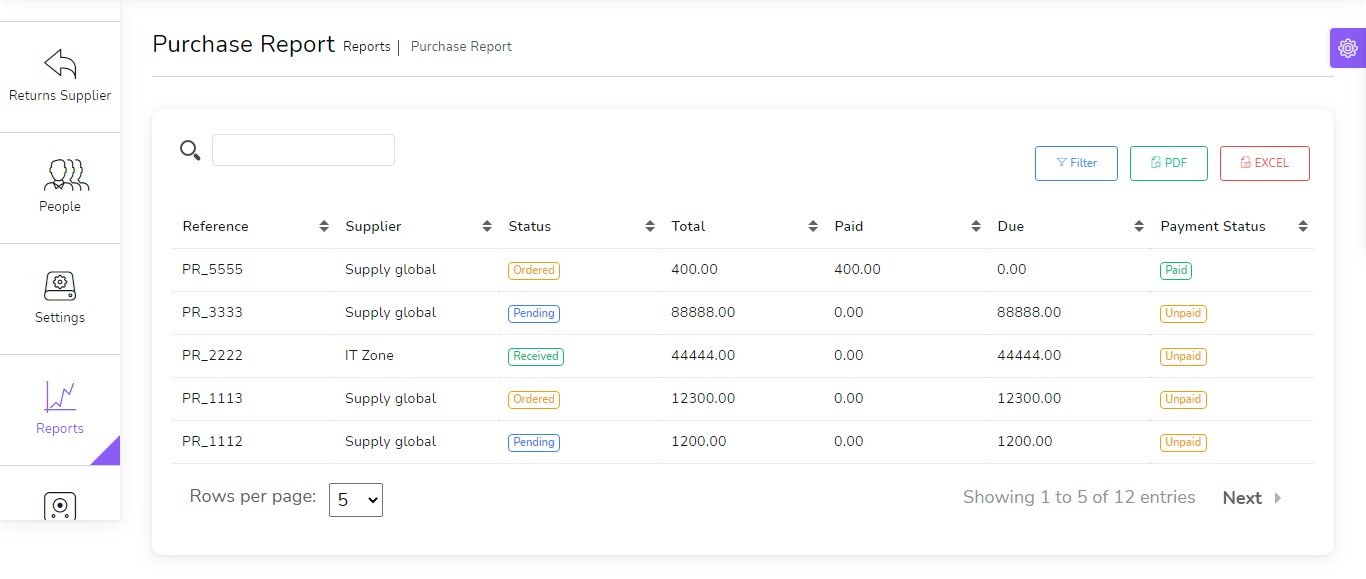
Purchases report
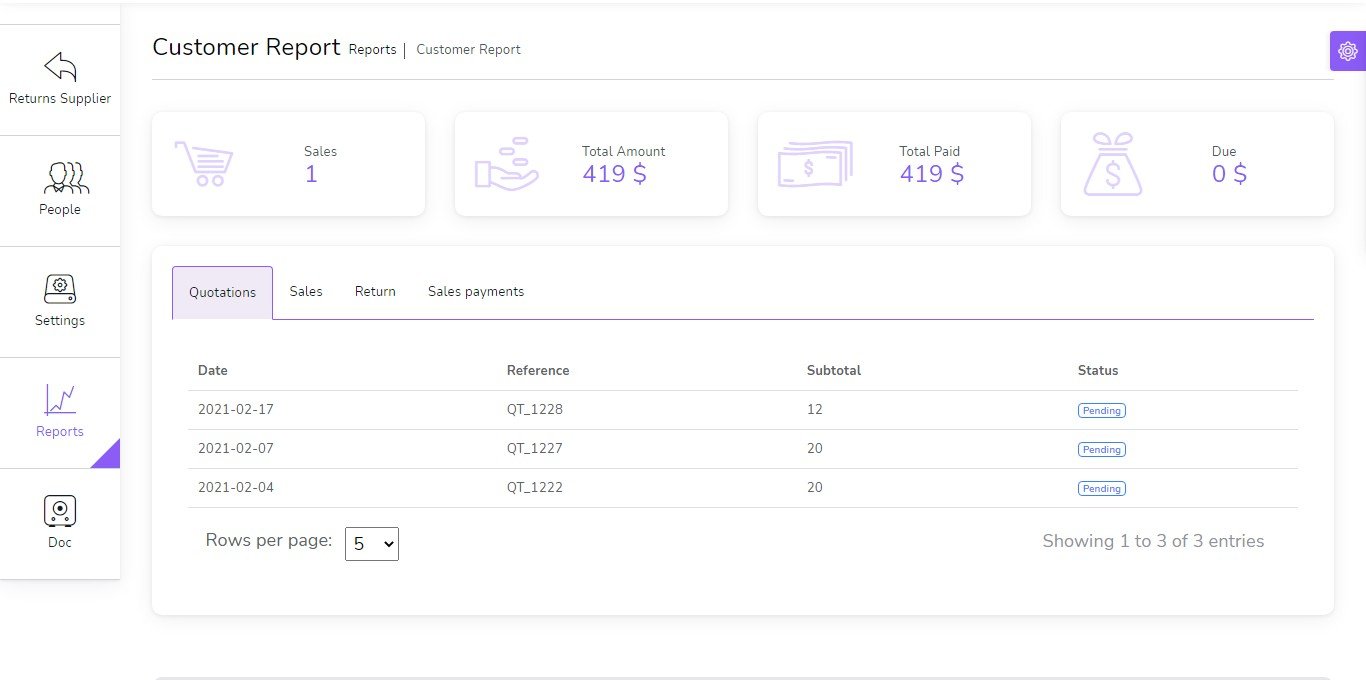
Customers report
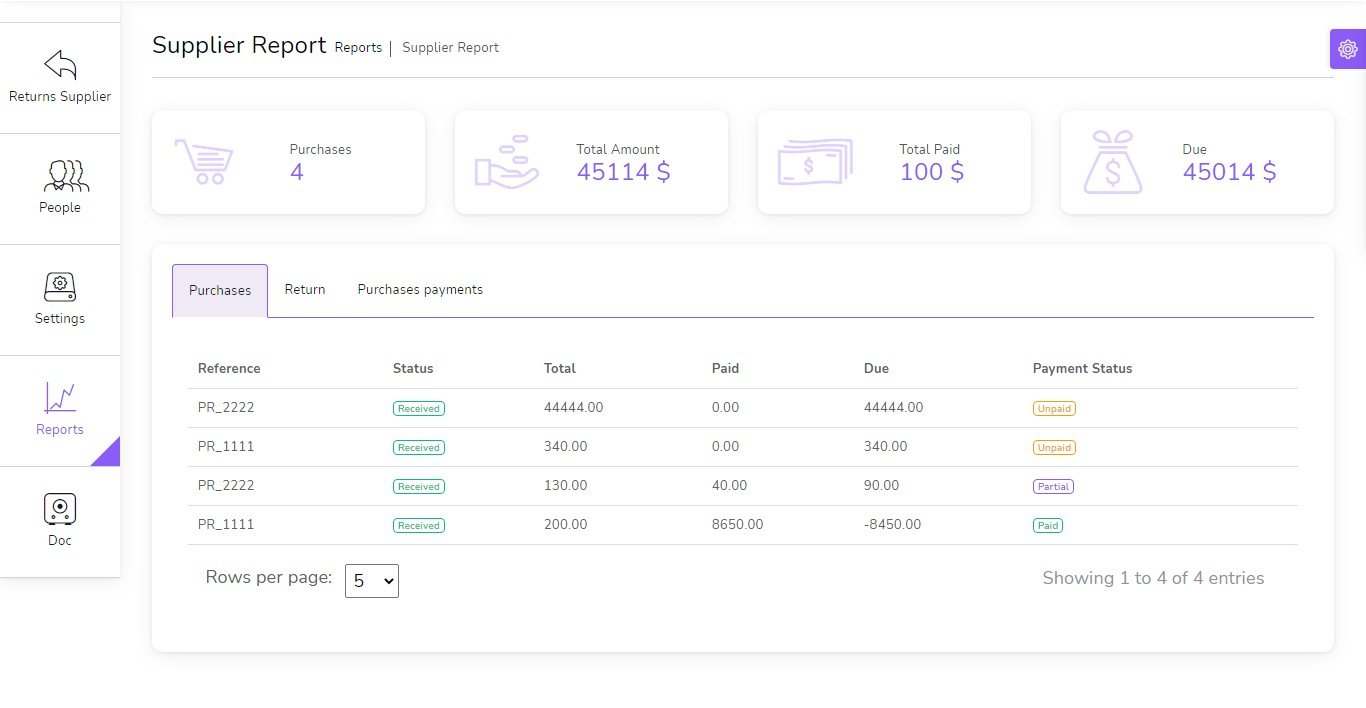
Suppliers report
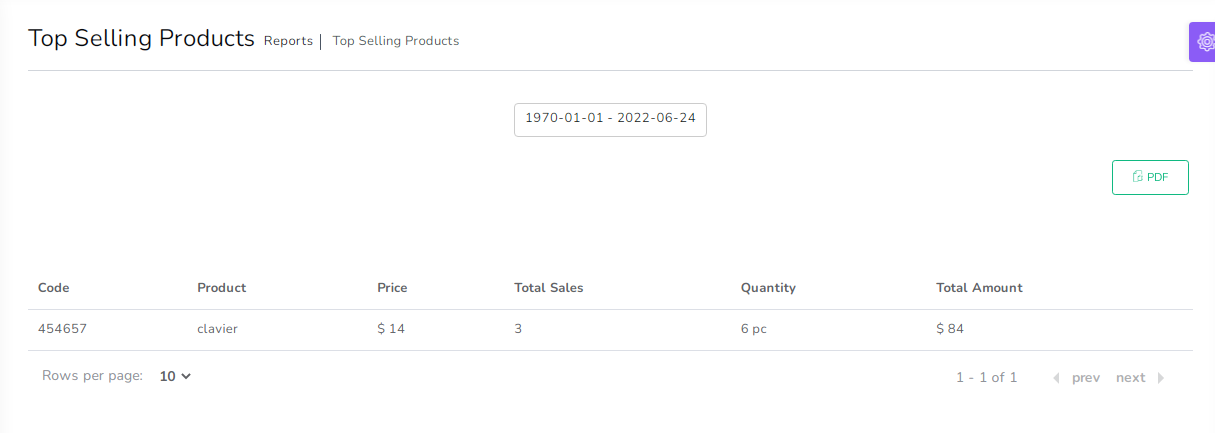
Top selling products report
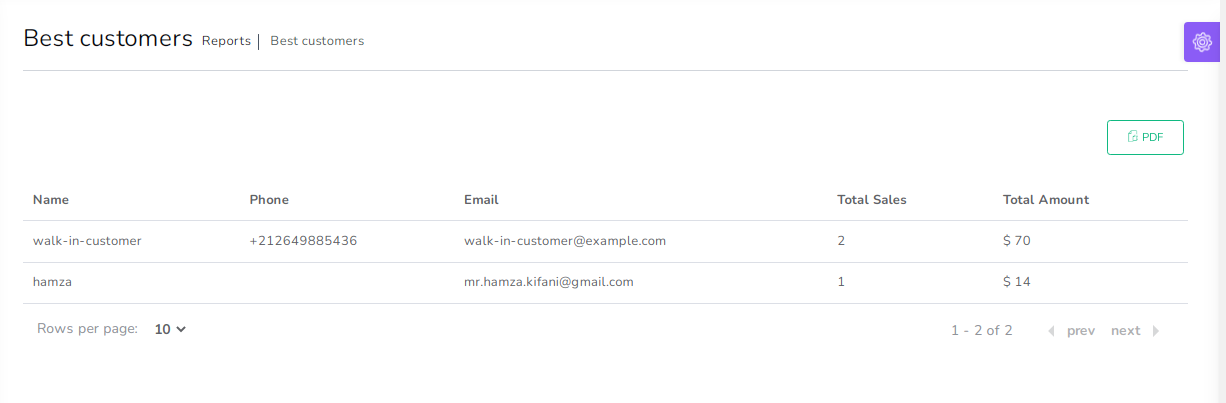
Best Customers report
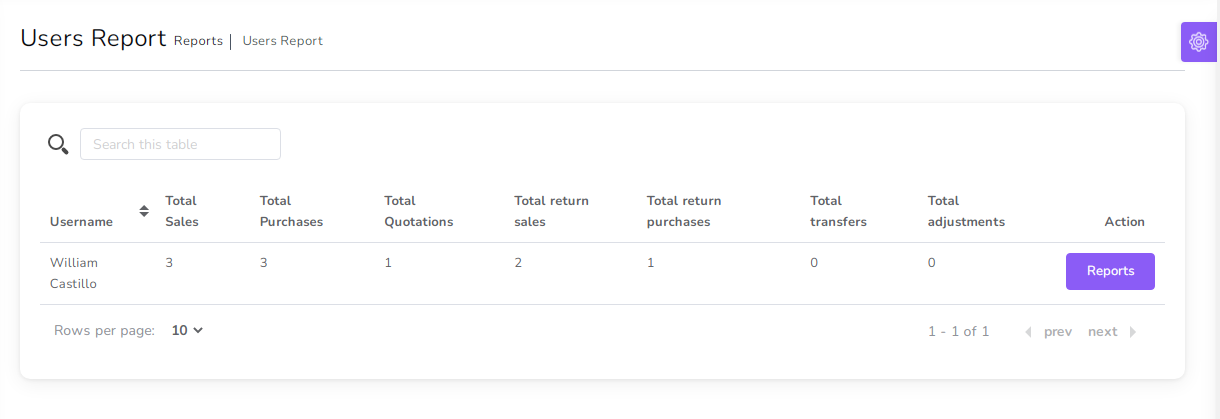
Users report